Apple Vision Pro is one of the most radical products Apple has made. Parts of it are genuinely incredible. Other parts feel weird, unfinished, or just a little dystopian. Sometimes all three happen at once.
After about a week of using it every day, the interesting question is not just what the headset can do. It is what operating a computer with your eyes and hands actually feels like. How do you open apps? Type something? Work on a Mac? Talk to somebody when there is a computer strapped over your face?
That is where Vision Pro gets fascinating. It combines some of the best headset technology I have ever used with very obvious first-generation compromises. These impressions concern the original M2-based Vision Pro and its launch software, including the app selection and beta Personas available during that first week.
Disclosure: Apple provided the headset for review.
Quick Summary
- Eye tracking, hand gestures, and stable window placement make visionOS feel genuinely different from desktop computing.
- Excellent passthrough remains a camera reconstruction, with limitations in brightness and close-up text clarity.
- Mac integration and the Apple ecosystem offer more everyday appeal than any single launch app.
- Weight, battery life, limited apps, and price remain major compromises despite impressive immersive experiences.
Table of Contents
- First, Yes, This Is a VR Headset
- The External Battery Is Part of the Experience
- Your Eyes Point, Your Fingers Click
- visionOS Makes Floating Windows Feel Surprisingly Solid
- Passthrough Is Excellent, but It Is Still a Camera Feed
- Typing Works Three Ways, None Quite Like a Laptop
- What Can You Actually Do With Vision Pro?
- The Closest Thing to a Killer App Is the Apple Ecosystem
- The Eyes on the Outside Are Stranger in Real Life
- Personas Are Impressive and Unsettling at the Same Time
- FaceTime Is the Most Thought-Out Futuristic Experience
- A Week In: Incredible Strengths, Very Real Compromises
First, Yes, This Is a VR Headset
Apple calls this spatial computing. And there is a reason for that terminology, which I explored in Apple’s approach to its forbidden words. But at its core, Vision Pro is a very high-end virtual reality headset.
It has displays, lenses, speakers, fans, buttons, and sensors. That basic form factor is familiar. What immediately separates it from most other headsets is the construction: a precisely machined aluminum frame, a huge curved glass front, and a lot of hardware packed inside.
The materials feel premium. They are also heavy.
- Cooling: Air enters through intakes underneath the headset and exits through vents at the top.
- Physical controls: A pressable, rotating Digital Crown sits on one side, with a larger button on the other. Very Apple Watch.
- Audio: Small speaker pods point down toward your ears. They work surprisingly well, although people nearby can hear some sound leaking out.
- Front glass: Behind the very smudge-friendly surface are an outward-facing OLED display and an array of cameras and sensors.
- Processing: An M2 chip and an R1 chip handle the computing and sensor processing.
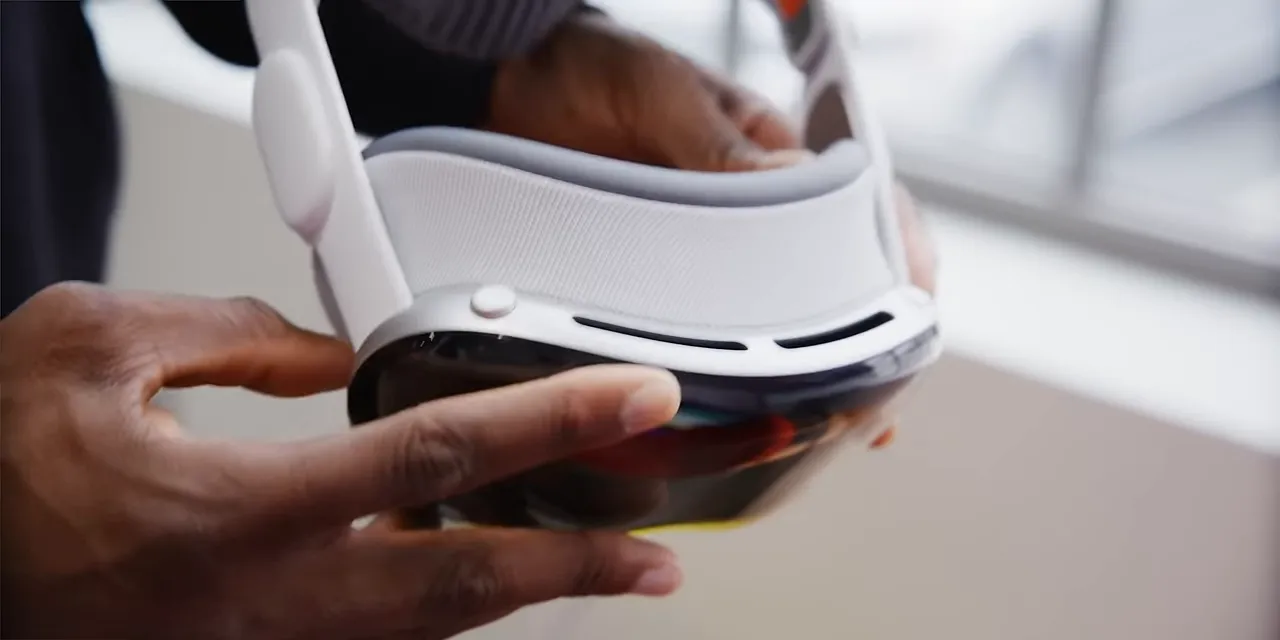
The outward-facing sensors look forward, sideways, and down. There are depth sensors, infrared illuminators, lidar, and regular RGB cameras. Inside, another set of sensors tracks your eyes in real time. Those power both the interface and a reconstructed representation of your eyes on the outside.
Weight distribution matters more than the number
My Vision Pro with the Solo Knit Band weighed 638 grams. That is actually slightly less than the plastic Meta Quest Pro, but the comparison misses something important: where the weight sits.
Quest Pro puts its battery behind your head, providing some counterbalance. Apple moves the battery completely off the headset, so almost all the headset’s weight sits at the front of your face.
There is an upside. With no battery on the back of your head, you can lean against a chair or couch more easily. But now you have a cable running to your head all the time, and the headset is distinctly front-heavy. Beautiful materials do not automatically make a comfortable face computer.
The External Battery Is Part of the Experience
The battery pack is a separate piece of hardware you have to think about whenever you use Vision Pro. Its listed capacity is 3,366 mAh, and a roughly four-foot cable connects it to the headset through a proprietary twist-lock connector.
The lock is solid. That makes sense for something you do not want accidentally disconnected every time a cable gets tugged.
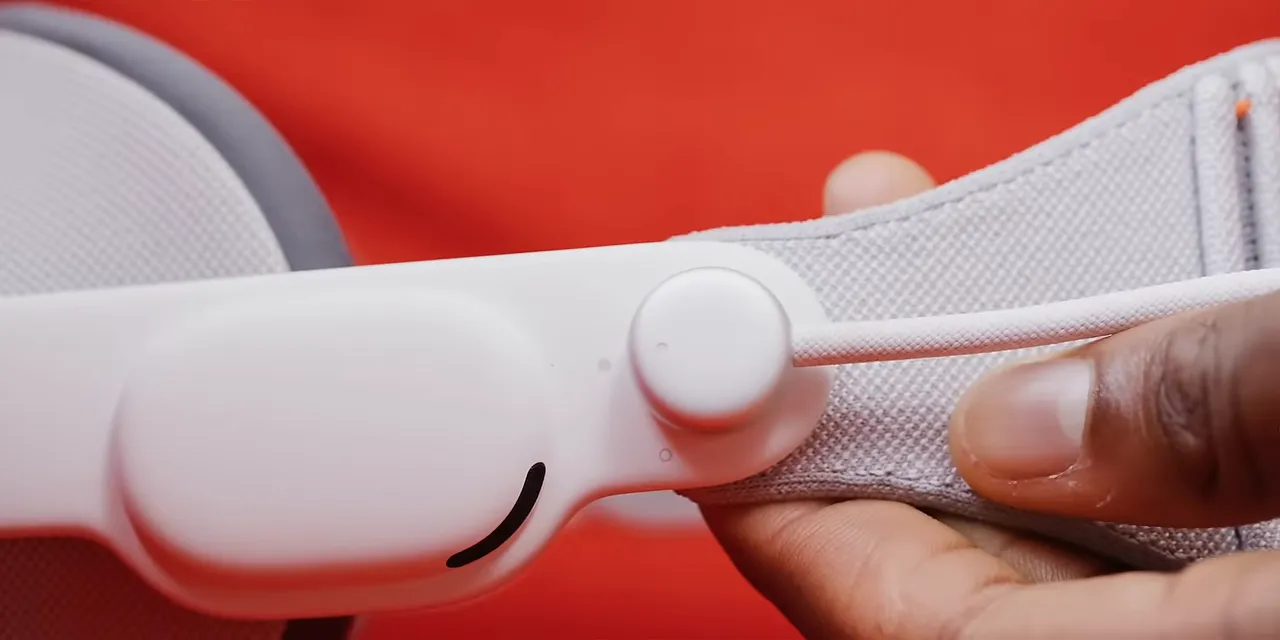
Connecting the battery starts the headset. A small Apple logo appears on the external display, and booting takes a little under a minute. There is no dedicated physical power switch. Taking the headset off eventually puts it into standby; disconnecting the battery removes power.
In my use, two to four hours was a realistic battery-life range. That is not especially long, but short battery life is hardly unique to Vision Pro. It is a fairly normal headset limitation.
For longer sessions, the battery has a USB-C port. Plug it into wall power and you can keep using the headset, or connect another battery bank to extend your time away from an outlet. Yes, that can mean a battery powering a battery powering the computer on your face.
The USB-C port and headset cable are on the same end of the pack, which initially seemed odd. It makes more sense when the pack is in a pocket: both cables can run upward, including while it is charging. A longer USB-C cable is useful for that setup.
Your Eyes Point, Your Fingers Click
There are no controllers in the box. Other input accessories can be useful, including a keyboard, trackpad, and game controller, but the default interface is your eyes and your hands.
Initial setup calibrates that system in a few steps:
- The lenses physically move to match the distance between your eyes.
- The headset scans your hands.
- You look at dots around the display and pinch your fingers together to select them.
It feels a little like an eye exam. Then you are in.
The first pleasant surprise is that your hands do not have to hover in front of your face. The cameras cover a wide area in front of and below you, so you can often leave a hand resting in your lap and casually pinch your thumb and finger together.
As long as the headset can see the gesture, it generally picks it up. That is a much more relaxed way to use a computer than constantly holding both arms up.
The adjustment is learning to keep looking
Press the Digital Crown and the app launcher appears. Look at an icon, pinch, and the app opens. To scroll, pinch and pull, almost as though you are dragging the content on a string. It is responsive, fluid, and sometimes a little bouncy.
The biggest learning curve is not the gesture. It is remembering that the thing you are looking at is the thing you are controlling.
On a normal computer, you can move a pointer onto a button, glance at what comes next, and still click the button. Here, looking away changes your target. You have to finish the interaction before your eyes move ahead.
That sounds minor. It costs more extra brain cycles than I expected.
visionOS Makes Floating Windows Feel Surprisingly Solid
The simplest way to describe visionOS is something like iPadOS, rebuilt with frosted glass and an extra dimension.
Native app windows have translucent surfaces that pick up colors from behind them. Sometimes they even cast shadows onto the floor in the appropriate place. Those details help convince your brain that a window occupies the room rather than merely appearing on a display.
But the most impressive part is the stability.
A window does not gently drift around in front of you. It stays locked to a position in space. Move your head, turn, or walk around, and it remains where you placed it. That spatial positioning is one of the best things about this headset.
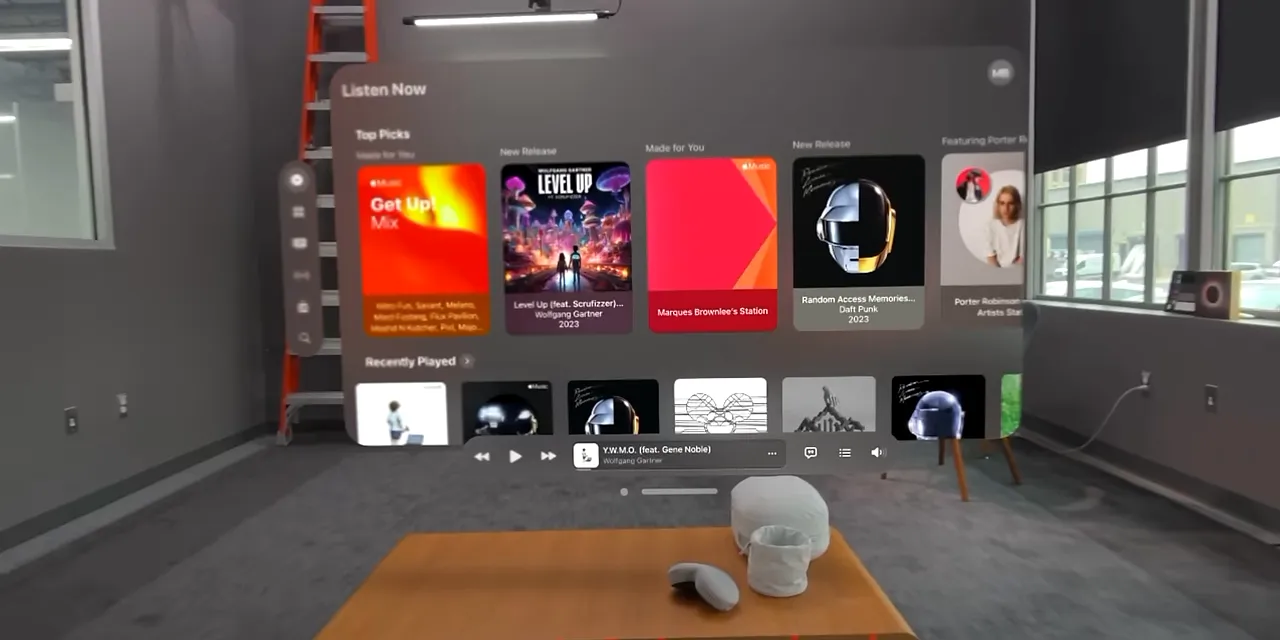
Window management is straightforward once you know where to look:
- Move a window: Look at the bar underneath it, pinch, and drag it left, right, up, down, closer, or farther away.
- Resize it: Look at a bottom corner and drag to change its size.
- Close it: Select the small X underneath the window.
- Return to apps: Press the Digital Crown to bring the launcher back in front of you.
Control Center is a little less obvious. In this launch interface, you physically tilt your head upward and select an arrow that appears above you. That opens access to battery information, notifications, Focus modes, screen recording, and the Mac connection controls.
Passthrough Is Excellent, but It Is Still a Camera Feed
Most of the time, Vision Pro defaults to passthrough. You can see the room around you, with app windows placed inside it.
This is the experience Apple wants associated with spatial computing. It feels like digital objects have been added to the real world. But you are not looking through transparent glass at your surroundings. You are looking at a camera-fed reconstruction on the headset’s internal displays.
Whatever terminology you prefer, this is the best passthrough I had used in a VR headset, and it was not particularly close.
The pixel density, 90 Hz refresh rate, camera dynamic range, and exposure adjustments work together remarkably well. Apple’s stated sensor-processing latency is under 12 milliseconds, handled by the R1 chip. More important than that number is how immediate it feels.
I could catch objects tossed toward me. I even tried playing ping pong, and it did not produce the hesitation I expected from seeing the world through cameras. That is an observation about the responsiveness, not a reason to treat a headset as sports equipment.
Where the illusion breaks
Very close objects can look blurry, and fine text is still a challenge. A tiny email on a phone is difficult to make out. Larger interface elements, notifications, and basic texting are much more manageable without taking the headset off.
That is impressive compared with other headsets. It is not equivalent to normal eyesight.
You can also remove Vision Pro and suddenly realize the room is brighter than it seemed inside. The reconstruction is convincing, but there is still a visible gap between the feed and reality.
Turn the crown and the room becomes the moon
Rotate the Digital Crown clockwise and a virtual environment gradually expands into your field of view. Keep turning until it surrounds you.
Your windows stay exactly where they were. You are just doing the same things on the moon now.

Apple includes several environments, mostly calm scenic locations. Mount Hood, with a little rain, is a particularly nice one. They are not quite photorealistic, but they come remarkably close. They were among the most realistic digital environments I had experienced.
Typing Works Three Ways, None Quite Like a Laptop
Text input is one of the places where this futuristic interface runs into a very ordinary computing problem.
Without a physical keyboard, there are three main approaches:
- Poke the virtual keys. A keyboard appears in front of you, and you physically tap its keys. It responds to the index finger on each hand, so forget normal home-row typing. This is slow hunt-and-peck input.
- Look and pinch. Look at a key and pinch to select it. If you know your keyboard layout, this can be surprisingly quick. I prefer it to poking because touching my fingers together at least provides a little physical feedback.
- Dictate. In Safari, for example, look at the microphone and speak a web address. For an address that is easy to say aloud, this is fast.
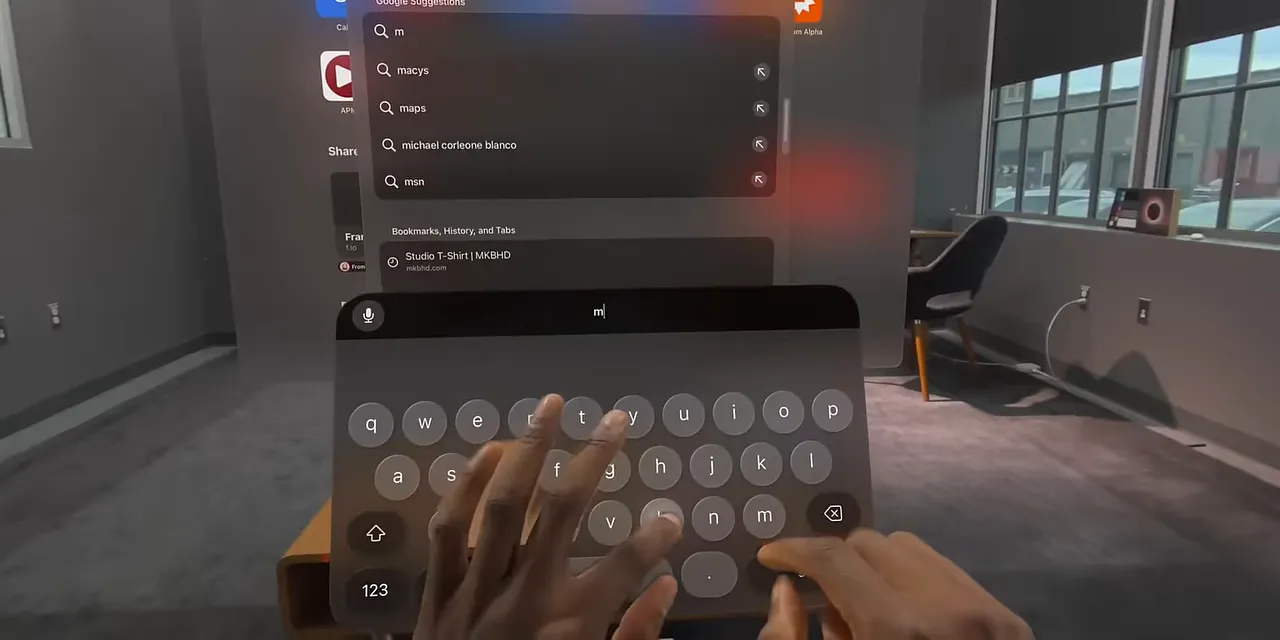
These methods get the job done for short entries. A real keyboard becomes much more appealing when the task involves actual writing rather than entering a search or a URL.
What Can You Actually Do With Vision Pro?
This is the question hanging over a headset that costs several thousand dollars. What is the application that makes all this hardware worthwhile?
At launch, apps fell into two broad categories: apps built specifically for Vision Pro, and compatible iPhone or iPad apps whose developers had not opted out.
Native apps show the potential
Some native apps are familiar software with new materials and layouts. Apple Music has the same core functionality, but in a glassy window with navigation on the left rather than across the bottom. Notes and Settings follow a similar pattern.
Other apps do more with the space around you:
- Apple TV and Disney+: Both include dedicated environments for media playback. Apple TV also has a small collection of immersive 180-degree videos made specifically for this kind of experience, including an Alicia Keys performance that places her right in front of you.
- Photos: Panoramas can expand into an immersive view, with a subtle parallax effect around the edges. It feels less like enlarging a flat photo and more like looking into a window.
- Sky Guide: Constellations appear in a representation of the surrounding sky. You can focus on one and pull it out for more information.
- JigSpace: Place 3D models in your room, inspect them at actual scale, and take them apart. The excellent spatial lock makes walking around a model especially convincing.
- Keynote: Alongside normal editing, it offers presentation rehearsal environments, including a conference room and Steve Jobs Theater. Practicing with your slides behind you is genuinely immersive.
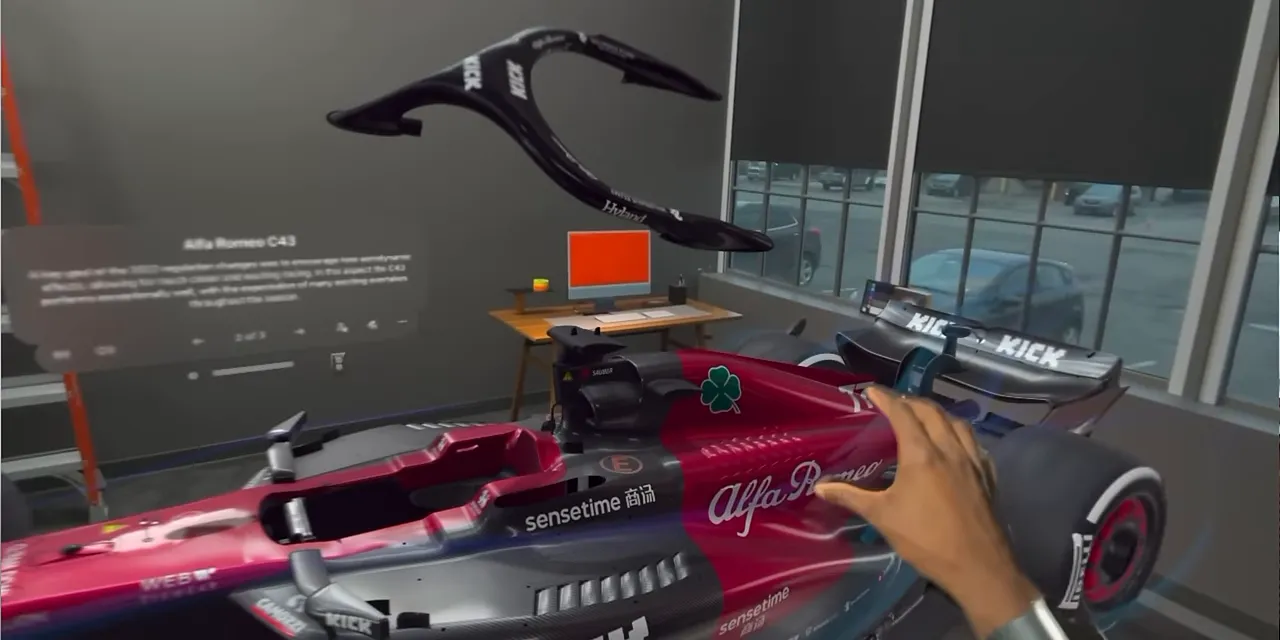
JigSpace is a great example of something I find technically awesome without necessarily knowing how often I would personally use it. There is a difference between an impressive demo and a daily habit.
That applies to the bigger app question, too. These are compelling experiences. None was, on its own, a clear reason for me to spend around $4,000.
Compatible apps fill gaps, but leave some obvious ones
Compatible apps look and behave much like their iPad or iPhone versions. Vision Pro even includes a folder called Compatible Apps.
I was surprised that more of Apple’s own software had not been rebuilt for the headset. Maps, for instance, was essentially the iPad app. No special spatial walking directions or clever overlays. Just Maps in a window.
At launch, Netflix, YouTube, and Spotify were also notable absences from the app selection. Their existing apps were not available as compatible downloads. Whatever the business reasoning, the practical result was disappointing.
Safari provides a workaround for services that function in a browser. A large, spatially anchored 4K YouTube video looks razor-sharp. But a browser does not replace every dedicated app feature. Downloading a Netflix show ahead of a trip for offline playback, for example, was not an option in that setup.
The Closest Thing to a Killer App Is the Apple Ecosystem
My strongest answer to the killer-app question is not one application. It is the ecosystem.
Sign in with your Apple ID and familiar things start appearing immediately: iMessages, photos, Notes, and the services you already use on other Apple devices.
That is an obvious strategy, but it is an effective one. Plenty of people who never seriously considered another VR headset are interested in this one because they already have an iPhone. There is much less friction when the new computer already has your stuff.
Mac Virtual Display is my favorite feature
With a Mac turned on in front of you, open the connection controls and select it as a virtual display. The Mac’s physical screen goes black, and its desktop becomes a 4K window inside Vision Pro.
Your Mac keyboard and trackpad continue working. The difference is that you can make the display much larger, move it farther away, or bring it closer.
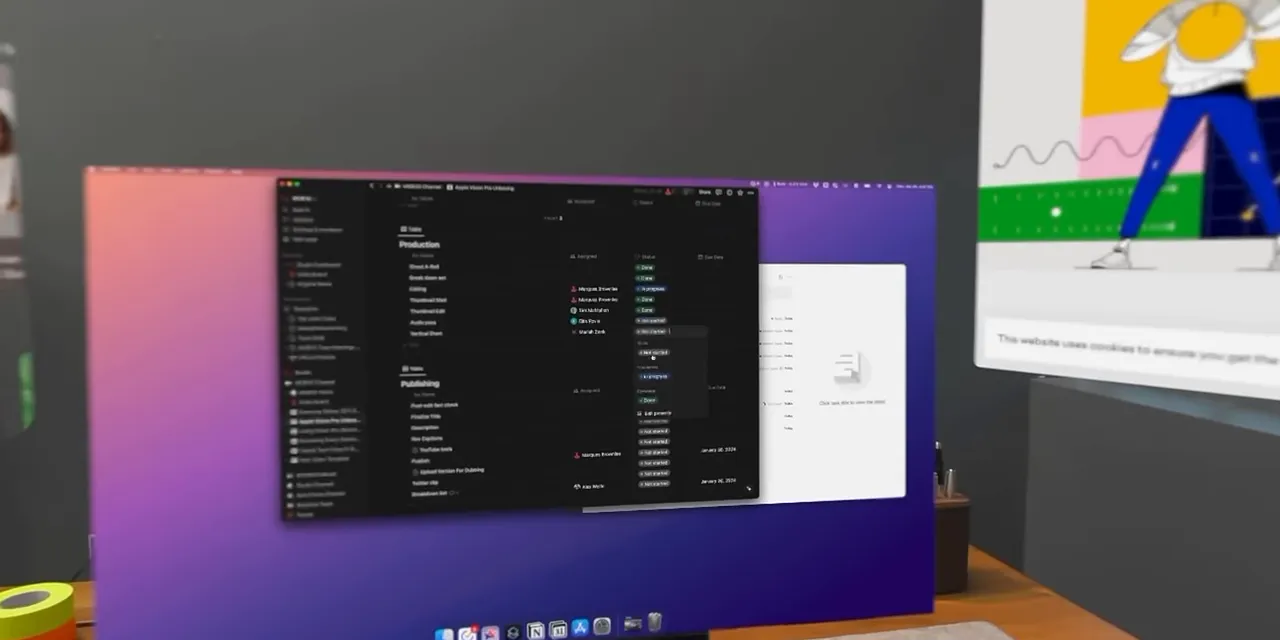
You can also place native Vision Pro apps around it. Keep a Mac application in the middle, then put Safari, Messages, or Apple Music off to the sides. The keyboard and trackpad can move between the Mac workspace and supported headset apps.
For me as a Mac user, the simplicity of setting this up makes it one of the most compelling futuristic uses of Vision Pro.
I can immediately imagine the appeal on a plane. The laptop display is black, nobody next to me is looking over at an editing timeline full of my own face, and I get a much larger private workspace.
There is a significant launch limitation, though: only one virtual Mac display at a time. My normal Final Cut Pro setup uses two displays, with a large preview on one and a timeline on the other. That workflow does not transfer directly. You have to use a single-display arrangement, even if that one display is enormous.
And the eye-targeting learning curve still matters when switching attention between the surrounding windows. This setup is very cool, but it does not instantly erase years of desktop muscle memory.
The Eyes on the Outside Are Stranger in Real Life
The outward-facing eyes are probably Vision Pro’s most recognizable feature. They are also very different in person from the impression created by Apple’s advertising.
The front is not transparent. There is an entire computer between your face and the glass. What people see is a digital reconstruction of your eyes.
The idea is sensible:
- When you can see the room: The display shows your eyes to signal that you can see the people around you.
- When you are immersed: A blue-purple animation covers the eye area, signaling that you cannot see the surrounding room.
- When someone breaks through an environment: A nearby person can become visible through the virtual scene, and some of your eyes appear through the external animation.
That breakthrough effect can reveal someone you are looking toward and talking to without requiring you to completely leave an environment. In my testing, it basically showed one person at a time.
The outer display also has a lenticular film. Its purpose is to give the eyes depth, making them appear recessed toward your face instead of pasted onto the front glass.
The problem is the result. On my headset, my eyes were extremely subtle. I tried rescanning in different lighting, with different backgrounds and clothing, and they never became much brighter. With a darker skin tone like mine, I would not expect particularly prominent external eyes based on that experience.
Even when visible, they can look dim, oddly spaced, or show only one eye clearly from a particular angle. The intention is understandable. The execution is still weird.
Personas Are Impressive and Unsettling at the Same Time
The eye reconstruction comes from creating a Persona, a digital version of your face. At launch, this was explicitly a beta feature.
Separately, the inward-facing eye sensors also enable Optic ID, the eye-based authentication system. Think of its role as similar to Face ID or Touch ID: identifying you to unlock and secure the device.
How creating a Persona works
The capture process is surprisingly straightforward:
- Open Settings, choose Persona, and start the setup.
- Let the headset refine its capture of your hands.
- Remove Vision Pro and hold it at eye level, facing you.
- Fit your face into the guide shown on the front display.
- Slowly turn your head right and left, then tilt it up and down.
- Make the requested expressions: a closed-mouth smile, a smile showing teeth, raised eyebrows, and briefly closed eyes.
- Put the headset back on to review the generated Persona.
Afterward, you can choose natural, studio, or contour lighting, adjust warmth and brightness, and add virtual glasses if that is part of your usual appearance.
Then there it is. A digital you.
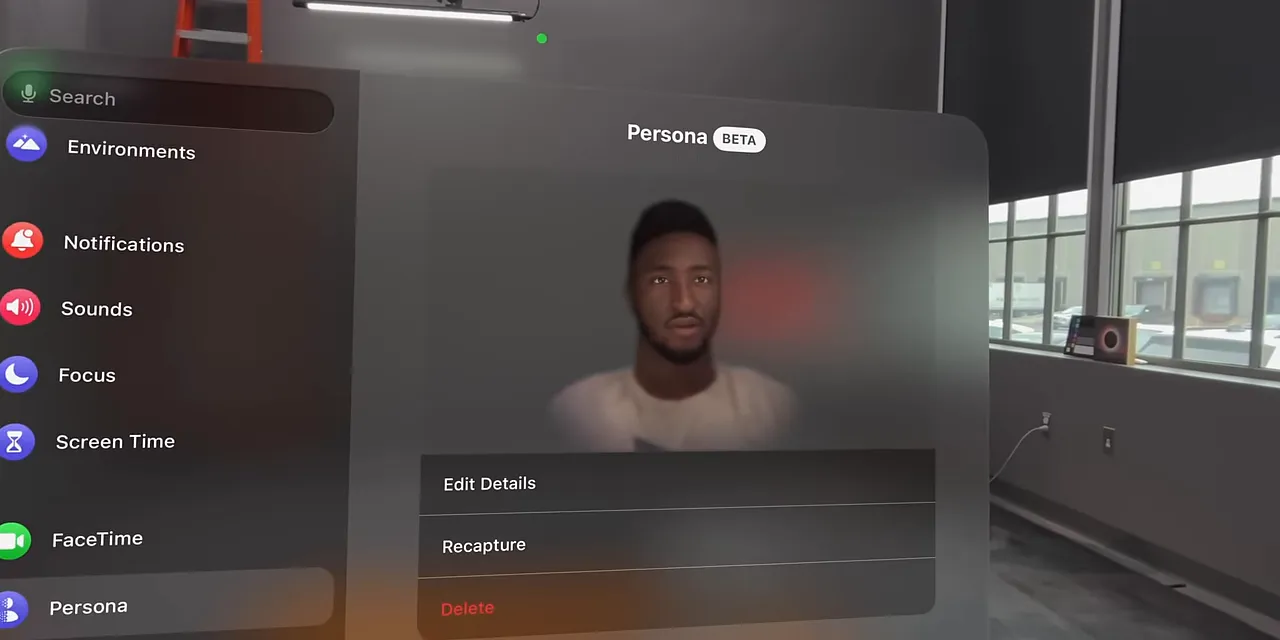
It is genuinely impressive that a headset covering most of your face can track small movements in your eyes, cheeks, and mouth and animate this representation. It is also not quite human. It lands very close to the uncanny valley.
Hair is the biggest weakness in the Personas I encountered. It looks like a fixed shape rather than something that flows naturally. Other details captured during the scan stay fixed, too, including a necklace’s position or the makeup you had on.
There is a funny upside there: make the scan when you look especially put together, and your digital self can still look ready for a 7 a.m. call when your actual self absolutely is not.
FaceTime Is the Most Thought-Out Futuristic Experience
Your Persona can serve as the camera feed in apps that need a front-facing camera, including FaceTime.
I tried several calls with other people testing Vision Pro. The first reaction was always some version of: that looks like you, but also, what exactly am I looking at?
Once that initial shock wears off, there is a lot of thoughtful work underneath.
Eye contact and gestures have direction
People appear in glassy windows floating in space. When everyone is using Vision Pro, the angle at which you look toward somebody affects how your Persona appears to them.
If I look toward the person on my right, the person on my left sees more of the side of my head. That sounds obvious in a room, but it is not how a normal flat video call works.
Tracked hand gestures have direction, too. A gesture aimed toward one participant appears at the appropriate angle rather than identically facing everybody on the call.
Spatial audio makes the windows feel placed in the room
A person positioned to your right sounds like they are speaking from the right. Move their window farther across the room and their voice sounds farther away.
Switch to a different immersive environment and the acoustic character changes as well. The sound responds to the virtual space instead of remaining completely disconnected from it.
These are subtle details, but together they make the call feel much more spatially coherent.
The faces still are not perfect. This is not the same as looking at a real human video feed. But between directional attention, hand tracking, window placement, and spatial audio, FaceTime feels like the most carefully considered futuristic Vision Pro experience.
A Week In: Incredible Strengths, Very Real Compromises
Using Vision Pro and deciding whether to own one are different questions. Understanding the controls does not settle the value argument, the long-term use cases, or whether you want this particular computer in your life.
After a week, my positives were clear:
- Immersion: Convincing environments and excellent displays.
- Spatial placement: Virtual objects stay remarkably locked in position.
- Input: Eye tracking and relaxed hand gestures work impressively well.
- Passthrough: The best I had experienced in a headset.
- Ecosystem: Familiar data, services, and especially Mac integration.
- Spatial audio: Subtle, effective, and deeply integrated into the experience.
The negatives were just as obvious: weight and comfort, underwhelming external eyes, an incomplete launch app selection, limited battery life, and price.
That combination is what makes Vision Pro interesting. Phones and laptops are mature categories, and progress often feels like small improvements to familiar things. This is riskier. Some ideas work brilliantly. Some clearly need another round.
For the broader ownership and value question, there is also my full Vision Pro review. But as an interface to actually use, this first version already makes a strong impression: a computer that can feel startlingly futuristic, right up until its very physical compromises remind you that it is still strapped to your face.


