Google has a new category of computer: Googlebooks. New laptops, a new operating system, and a pretty clear ambition to become the laptop you pair with your Android phone.
My first question was probably the obvious one: How is this different from a Chromebook? Because we already know what Chromebooks are. And these are certainly priced differently.
After a week with the ASUS Googlebook, I mostly understand the idea. There is some genuinely nice hardware here, some useful Gemini features, and the beginnings of a connected ecosystem that Pixel fans have wanted for years. But understanding what a Googlebook is and knowing who should spend money on one are two very different things.
Quick Summary
- Googlebooks pair premium laptop hardware with Android-based Googlebook OS, phone integration, and Gemini features.
- Desktop app quality varies widely, making essential software compatibility the most important buying consideration.
- Prices start at $900, putting Googlebooks against cheaper Chromebooks and more mature desktop platforms.
- Pixel fans and writers are stronger fits than gamers or people buying specifically for video editing.
Table of Contents
- What Is a Googlebook?
- Googlebook OS Is Basically Android for a Laptop
- The Gemini Features: Some Gimmicks, Some Genuinely Useful Stuff
- The Biggest Problem Is Not Hardware. It Is Apps.
- The ASUS Googlebook Is Really Nice Hardware
- Googlebook vs. Chromebook: The $900 Question
- Who Should Actually Buy a Googlebook?
- The Verdict: Buy the Computer That Exists Today
What Is a Googlebook?
A Googlebook is a premium, lightweight laptop running Googlebook OS, an Android-based operating system built around Android apps, phone integration, and Gemini features.
Google is not making the launch hardware itself. Instead, five companies are making Googlebooks:
- ASUS
- Acer
- Dell
- HP
- Lenovo
All five share a few basics: 16GB to 32GB of RAM, 2K or higher-resolution touchscreen displays, lightweight designs, and a colorful light on the lid called the Glowbar.
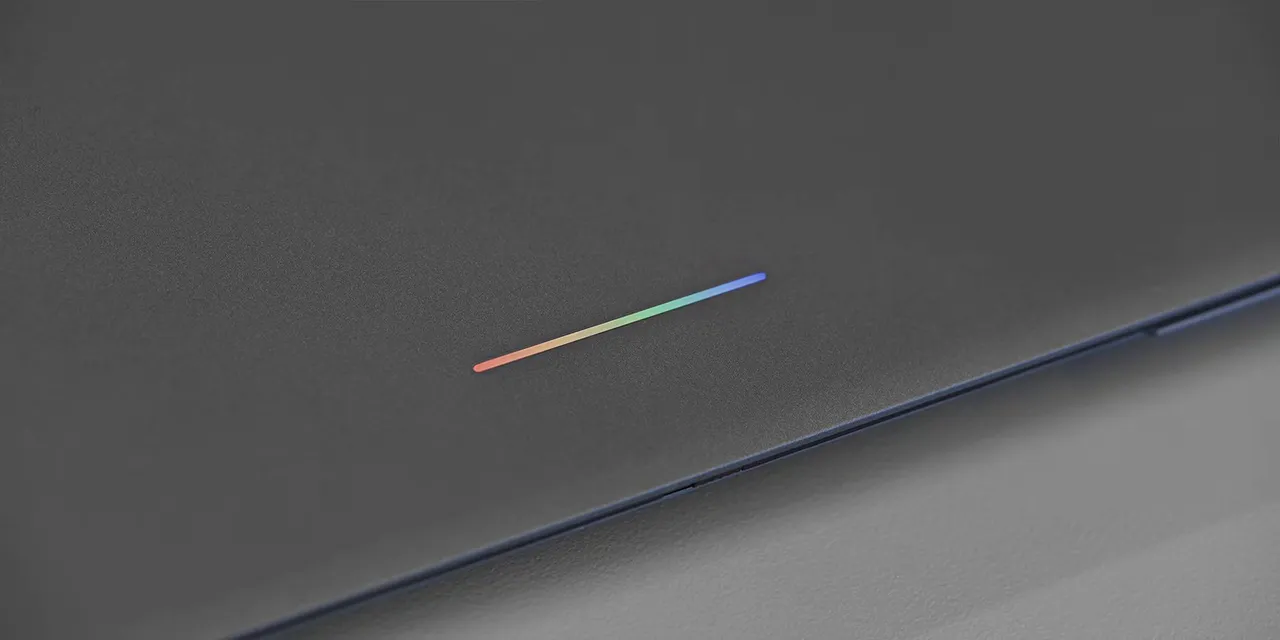
The Glowbar has a short job description. It turns red when the battery is low, displays charging progress when plugged in, and turns purple when you are talking to Gemini. That is about it. A little personality on the back of the laptop.
The more important difference is the software. These do not run ChromeOS. They run Googlebook OS, which is already a slightly confusing name given that Google Books is an entirely separate product. But okay. We can let that slide.
Googlebook OS Is Basically Android for a Laptop
The pitch is familiar: give someone with an Android phone, especially a Pixel at launch, the kind of continuity an iPhone owner gets across Apple devices. Then sprinkle some extra Gemini on top.
On the ASUS Googlebook, I can:
- Receive notifications from my Pixel.
- Send texts from the laptop through my phone.
- Share my phone’s internet connection.
- Access and drag files between the phone and laptop, subject to a 200MB file-size limit.
- Continue a task from my phone on the laptop with one click.
That last one is a good example of what this ecosystem is trying to accomplish. You start booking a flight on your phone, get a few steps into it, and realize this is absolutely a big-screen activity. Instead of starting over, you pick up where you left off on the Googlebook.
The rest of the interface feels very Android. There are home screens with folders and widgets, an app drawer, and familiar Quick Settings. So familiar, actually, that there is an auto-rotate toggle that does nothing on this laptop. It is just there.
Open the device information page and it reports Android 17. That tells you a lot about what is underneath the Googlebook branding.
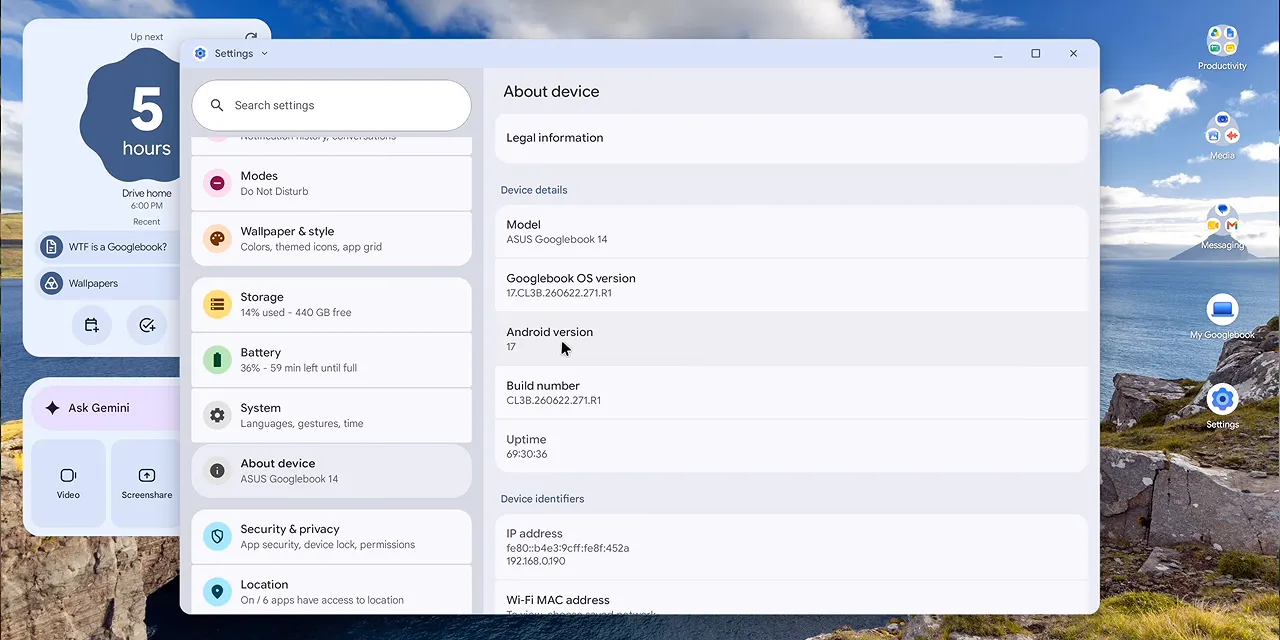
There are adjustments for using a touchscreen, mouse, and keyboard, but the app foundation is Android. You get the Play Store and can install apps onto the laptop’s internal storage. If an app is already on your phone and you do not want to install it again, you can mirror it instead.
That is the main premise: an Android-centered laptop with tight phone integration. The AI features are the extra layer.
The Gemini Features: Some Gimmicks, Some Genuinely Useful Stuff
Magic Pointer
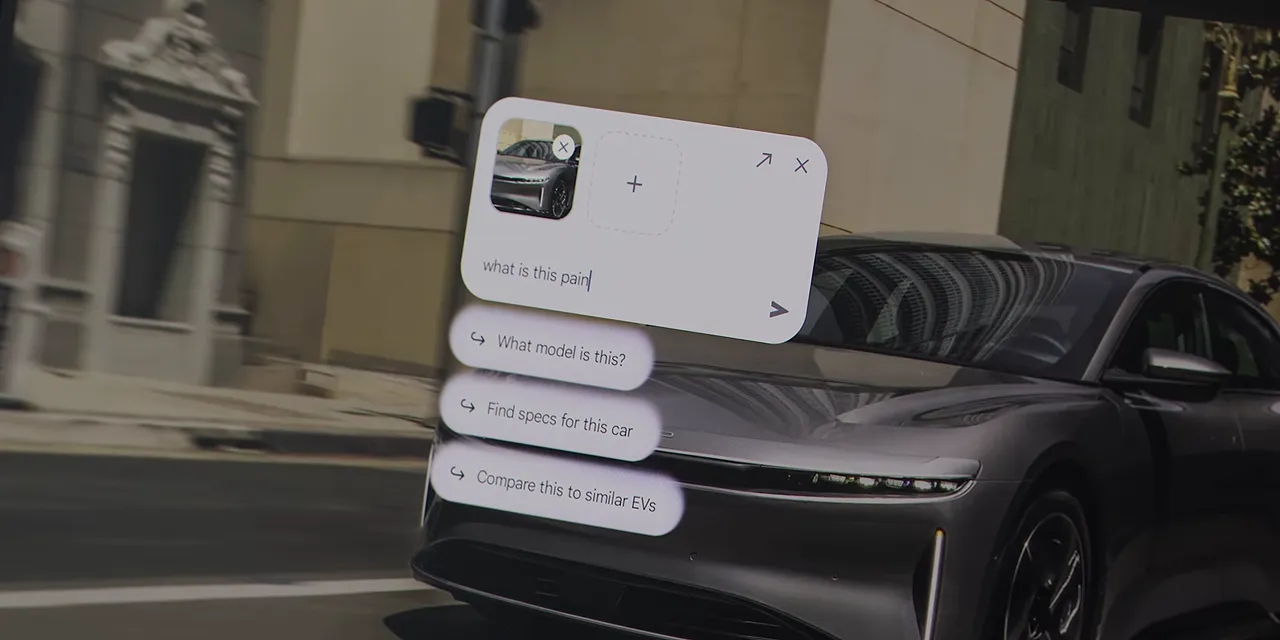
The headline feature is Magic Pointer. It is off by default, but once enabled, you wiggle the cursor to activate it, select something on the screen, and ask Gemini about it or have Gemini do something with it.
A typical use is selecting an image and asking for more information about the thing in it. It brings an AI interaction directly to whatever you are pointing at, rather than making you start a separate conversation and explain the context.
Semantic File Search
My favorite feature is much less flashy: semantic file search.
The ASUS I used has half a terabyte of local storage and a proper file system. If I cannot remember a filename, I can search for a description of what I remember being inside the file, and the Files app can still find it.
This is actually useful AI. Forgetting the exact name of a file is a real problem. Finding it by remembering its contents is a practical solution.
Rambler Speech-to-Text
Rambler is Google’s smarter speech-to-text feature. It works quickly and cleans up filler sounds like “um” and “uh” as you dictate. There is even a dedicated keyboard button for it, which is kind of hilarious, but also convenient if dictation becomes part of your workflow.
Create My Widget
Create My Widget lets you describe a widget in natural language and have the system build it for you.
When it works, that is pretty sick. These are not the prettiest widgets in the world, but getting a small tool tailored to what you need without building it yourself is a useful idea. The important part of that sentence is still “when it works.”
The Biggest Problem Is Not Hardware. It Is Apps.
Having the Play Store sounds like an easy answer to the software question. Millions of apps, right?
Well, there are asterisks.
An app being available is not the same thing as that app being good on a laptop. Googlebook OS is new, and compatibility is all over the place. The Play Store actually labels apps to help explain what kind of experience you should expect.
- Made for Desktop: The best-case scenario, with an app built for Googlebook OS.
- Optimized for Desktop: A more suitable large-screen experience with mouse and keyboard support.
- Compatible with Desktop: An app that works on the desktop, though that does not necessarily make it a fully desktop-class experience.
- Better on the Website: You are better off opening the service in a browser.
- Built for Mobile: You are getting the phone version, without meaningful optimization for the larger screen.
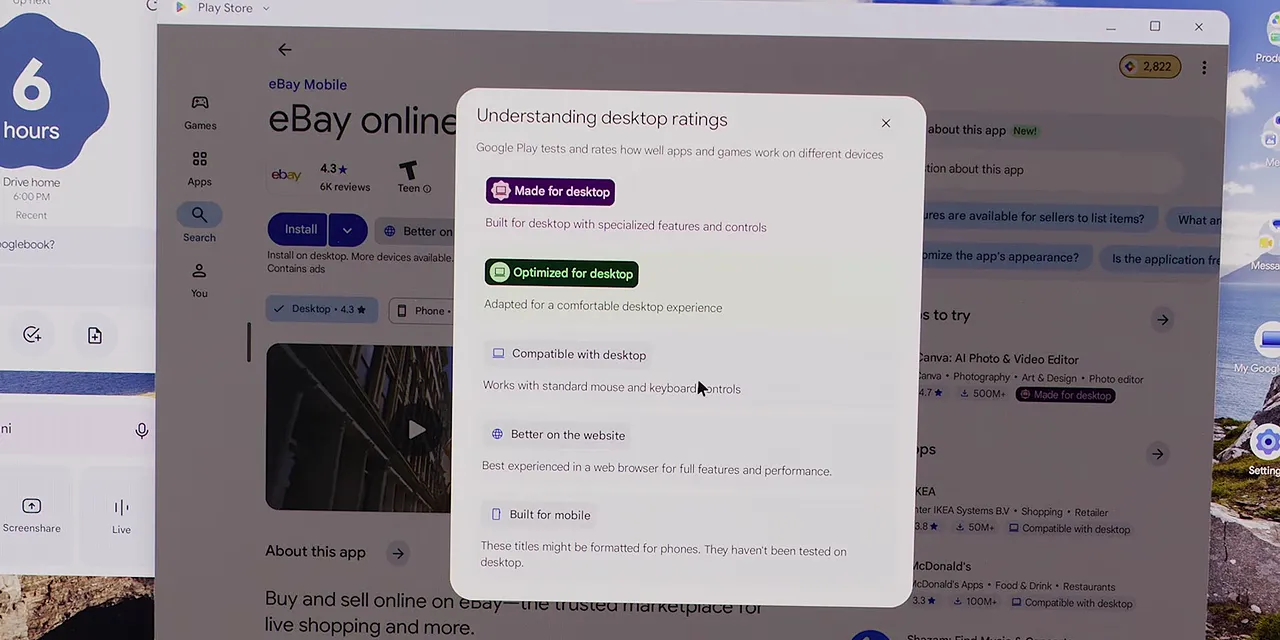
“Better on the Website” is a bit of a burn. But it is also useful honesty. If the Android app is a bad desktop experience, the browser may be the better option.
At launch, most apps are not built specifically for Googlebook OS. There are some featured desktop apps, but there is still a desert of truly great desktop-class software compared with Windows, macOS, or even Linux.
The issue is not whether you can find something to install. It is whether the apps you actually need work well enough to justify buying the computer.
If you have one or two nonnegotiable apps for work or school, and those apps are unavailable or bad on a Googlebook, the new operating system has not solved your problem. A premium display and clever file search do not change that.
The ASUS Googlebook Is Really Nice Hardware
Here is the frustrating part: I really like the ASUS laptop itself.
The first thing I noticed out of the box was how light it is. It weighs barely over two pounds and is incredibly easy to travel with. Battery life was also great in my use, especially standby time. I got multiple days out of it, though that is not a claim of multiple days of uninterrupted active use.
The hardware checklist is strong:
- Display: A 1,000-nit OLED panel with an anti-reflective coating that does a good job blocking reflections.
- Ports: Two USB-C ports, USB-A, and HDMI.
- Keyboard: Solid, with a little deck flex, but nothing terrible.
- Trackpad: Large, with haptic feedback.
- Security and privacy: A fingerprint reader and a physical webcam cover slider.
- Hinge: It passes the one-finger opening test. Underrated.
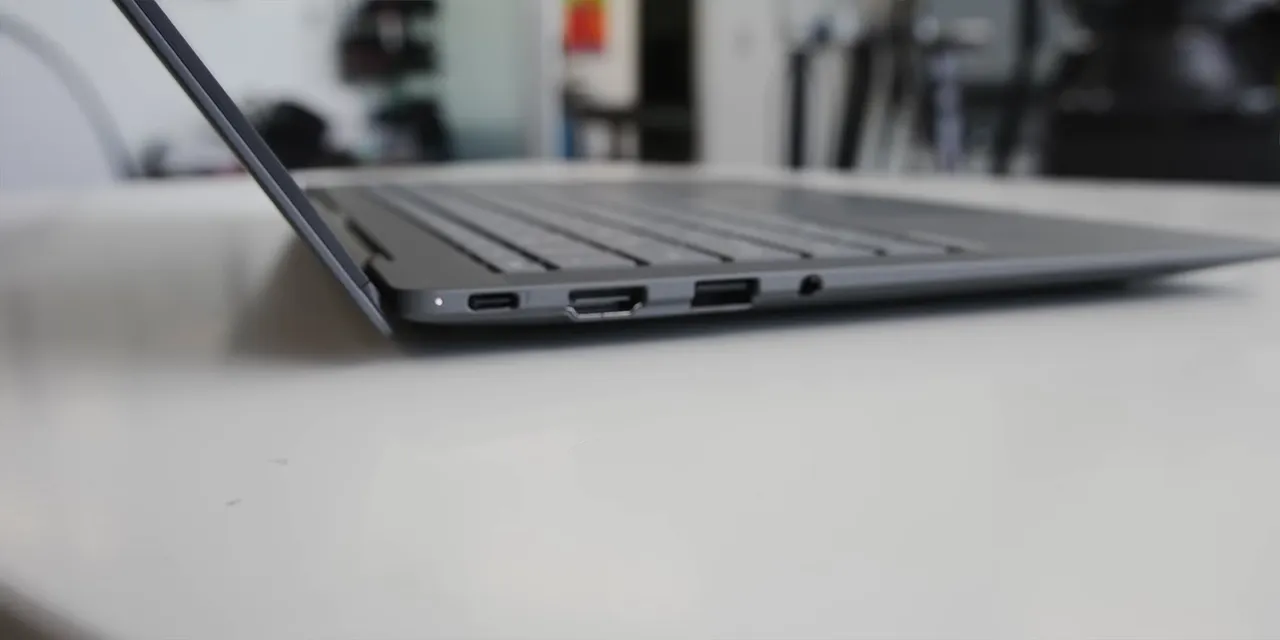
This is a likable, solid, thin-and-light laptop. The problem is that it costs $1,300.
That is MacBook Air money. Literally.
The Dell Googlebook starts around $1,000 and goes up to $1,800, using a Snapdragon X Elite chip that is already two years old. There is a potential advantage to ARM here: Android apps optimized for desktop may also be better suited to running natively on ARM, while Intel-based Googlebooks involve translation. But in my use, that did not create a huge difference in the overall experience.
So the hardware can be excellent. It still has to make sense as a complete computer at the asking price.
Googlebook vs. Chromebook: The $900 Question
The cheapest Googlebook starts at $900, and prices climb well into four figures. That places these in what I think of as the premium entry-level category, where the MacBook Air has lived for a long time.
At that price, the argument cannot simply be that this is a nice laptop for browsing the web. There are already cheaper computers that do that well.
There is another wrinkle: Google has confirmed that some existing Chromebooks will be able to upgrade to Googlebook OS. Which models, and when, are still unanswered questions.
Consider the Galaxy Chromebook Plus. It is already a premium, lightweight AMOLED laptop with full-size ports, and it costs $750. If something like that becomes eligible for the new OS, the value equation changes. But its eligibility is not something to assume.
Meanwhile, Chromebooks are not going away. If you mostly need word processing, browsing, and email, and you do not care much about the extra phone integration or Gemini features, a cheaper Chromebook remains a very reasonable answer.
That leaves Googlebooks squeezed between less expensive Chromebooks and similarly priced laptops with much more mature desktop software.
Who Should Actually Buy a Googlebook?
A laptop recommendation depends on what you do with it. So here is the report card, with the grades reflecting fit for each kind of person rather than a universal score.
Pixel Fans: A
This was made for you. The phone integration, familiar Android interface, and Google features are the point.
And if anyone understands waiting longer than expected for a Google product to become as good as it should be, it is us Pixel fans. There is real appeal here, provided you are comfortable with the limitations of a first-generation platform.
K-12 Students: C-
I do not think the extra cost makes much sense for most younger students.
A Chromebook already covers the core schoolwork use case. Googlebooks add phone continuity and Gemini features, but those extras do not automatically justify a much more expensive computer. For most students in this category, just get the Chromebook.
College Students: B-
This depends heavily on your major.
For note-taking, reading, studying, and general browser-based work, a Googlebook can make sense. Some of the Gemini tools could be helpful, too.
But the second your course requires an app that is not available, this can become a non-option. Check your actual software requirements before buying, not after.
Also, for movies and other entertainment between assignments, the ASUS has the best speakers of the Googlebooks I assessed.
Writers: A-
This is a pretty good fit. I wrote a lot of my review on the ASUS Googlebook, and the combination of a good keyboard, very good battery life, and a more-than-adequate display worked well.
Word processing, web browsing, and email are right in its comfort zone. I also find some of the Google features useful. If you do not, a Chromebook can deliver much of the same everyday computing for less.
Photographers: B-
You have Photoshop Express, Lightroom for Android, and Snapseed. Those are useful for light retouching and casual edits, but they are not substitutes for every full desktop editing workflow.
The displays are bright, especially the ASUS OLED, though I would not choose these specifically for demanding color work. For casual edits, fine. For high-end photography work, you are probably already shopping elsewhere.
Android Developers: A
This was a surprisingly promising category, with an important qualifier: Android developers, not necessarily every kind of programmer.
I have less firsthand experience with this workflow, but Google’s development tools, including Android Studio and its agentic coding tools, make this an interesting fit when you have an internet connection and enough local memory. The 16GB minimum RAM is a good starting point.
Video Editors: D-
No Premiere Pro, no Final Cut Pro, and no DaVinci Resolve. You do have CapCut and LumaFusion, so lighter editing is possible.
The convenient phone-to-laptop file transfer also runs into that 200MB limit, which rules out plenty of larger video files. If video editing is the reason you are buying a laptop, I would not choose a Googlebook.
Gamers: F
Short answer: this is not the gaming laptop recommendation.
Grandma and Basic Home Use: B
Shopping, browsing, and emailing the grandkids? A Googlebook can do those things.
But doing the job and being the right purchase are different questions. Around $1,000, we can find a better-value computer for those needs and spend less. The premium extras are not essential for basic home use.
The Verdict: Buy the Computer That Exists Today
I like the idea of a minimal laptop that is even thinner and lighter than a MacBook Air. I like the ASUS hardware. I like semantic file search, and the Pixel integration makes sense.
But if the laptop costs as much as established alternatives while offering far fewer great desktop apps, that is where it starts losing people. Some will be better served by a cheaper Chromebook. Others should spend similar money on a MacBook Air or a Windows laptop with the software they already need.
Googlebooks may eventually catch up in app support and offline usability. Today is not that day.
Buy products for what they do today, not for promised future software updates.
There is also the first-generation Google factor. The Killed by Google graveyard is a reminder that not every ambitious Google product gets a long runway. That does not mean Googlebooks are destined to fail. It does mean buying one involves some uncertainty.
For committed Pixel fans with compatible workflows, this could be an interesting ride. For most people, the hardware is ready before the software ecosystem is. And at these prices, that is a tough trade.
Disclosure: ASUS provided the ASUS Googlebook for review, and Dell provided the XPS Googlebook for review.


