A display does not have to be a better rectangle to be interesting. Sometimes it is a piece of glass that turns an existing MacBook into a touchscreen. Sometimes it spins at 900 RPM to put a three-dimensional object in front of you. And sometimes it is a pair of glasses trying to land somewhere between an everyday wearable and a full VR headset.
These are four very different ideas about what a screen can be. Some are genuinely practical. Some are wildly complicated. All of them qualify as Dope Tech.
Key Takeaways
- Magic Screen adds touch input to existing MacBooks, but macOS still presents small-target usability challenges.
- The volumetric display synchronizes spinning panels and thousands of updates to create three-dimensional objects in space.
- Dell's 52-inch ultrawide combines screen partitioning and a four-computer KVM to challenge dual-monitor setups.
- Project Aura trades some headset immersion for lighter glasses and a separately upgradeable computing puck.
Table of Contents
- Magic Screen: Adding a Touchscreen to a MacBook
- A Volumetric Display That Looks Like a Hologram
- Dell UltraSharp 52: One Monitor That Could Replace Two
- Project Aura: Between Smart Glasses and a VR Headset
- Sponsor: CHEF iQ's Connected Mini Oven
Magic Screen: Adding a Touchscreen to a MacBook
MacBooks do not have touchscreens. But what if you could just snap one on?
That is essentially the pitch for Magic Screen by Intricuit. It is a flexible, touch-sensitive glass panel that attaches to a MacBook with magnets, connects over USB Type-C, and immediately adds touch input across the entire display.
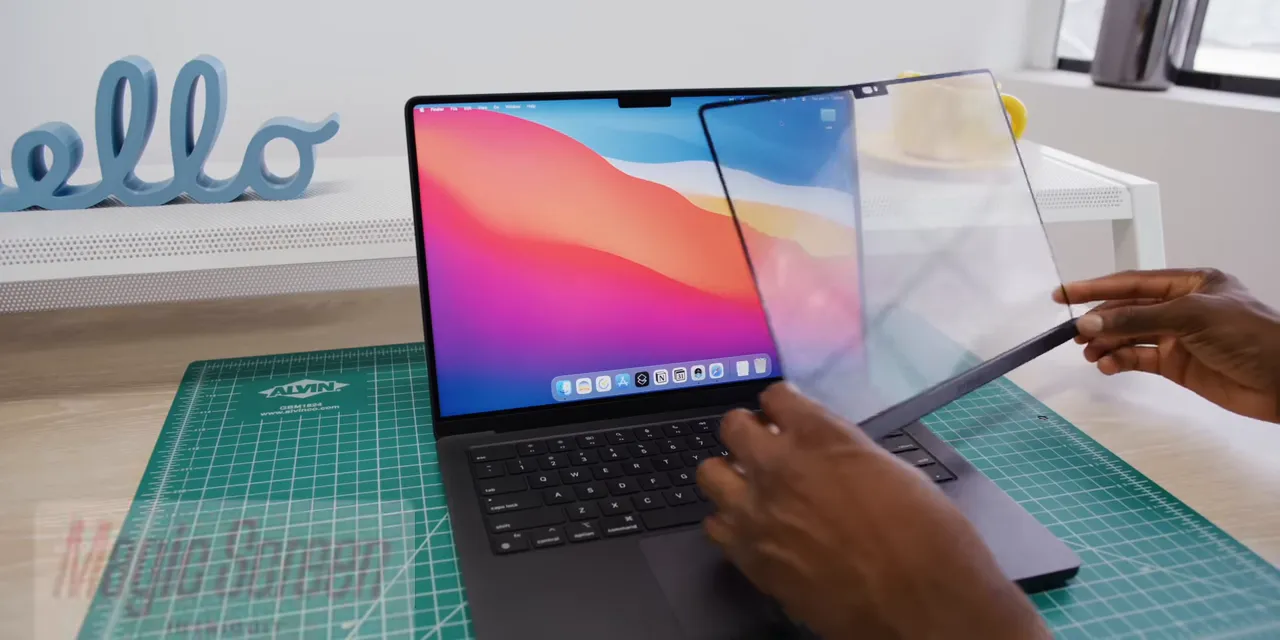
Once it is connected, the basics work pretty much how you would expect. You can scroll through websites, tap around apps, and do some light photo editing. iPhone Mirroring in macOS Tahoe makes particularly obvious sense here. An app designed around a fingertip suddenly gets to be controlled with a fingertip again.
Underneath all of that, this is absolutely a hack. The accessory is presenting itself to the Mac as a trackpad. But as hacks go, it is surprisingly well thought out.
The Small Hardware Details Matter
Touching a laptop display introduces a few problems that do not really exist when you are using a trackpad. Intricuit has at least thought about them:
- Screen wobble: An accessory folio supports the display so it does not bounce around as much when you touch it.
- Travel: The glass tucks into the folio, giving it somewhere to go when the MacBook goes into a bag.
- Accidental damage: The corner USB Type-C connector also acts as a physical stopper, preventing you from closing the laptop onto the attached glass.
- Stylus input: A separate stylus adds hover and pressure sensitivity, with a stated 100-hour battery life.
You can even take the panel off the laptop and use it separately, almost like a transparent Wacom tablet. That makes it more versatile than a simple touch overlay.
A Touchscreen MacBook Could Actually Help It
The obvious question is what happens if Apple makes its own touchscreen MacBook Pro. At the time of this hands-on, an OLED redesign with touch support was expected later in the year. That is an expectation, not an announced Apple product, but it does make this accessory feel like it might have an expiration date.
Except I do not think the situation is quite that simple.
Someone with a perfectly good M2 or M3 MacBook might want touch input without buying an entirely new, potentially very expensive laptop. Those machines still work well and could keep doing so for years. An add-on has a different audience from a replacement computer.
There is also a possible upside: a touchscreen Mac could push macOS to become more touch-friendly, which could make this accessory better.
Right now, macOS is fundamentally designed for a mouse and keyboard. Some interface elements, like parts of Control Center, are starting to look more touch-oriented. But the tiny red, yellow, and green window buttons are still difficult to hit consistently with a finger. Grabbing a window by its title bar is another surprisingly precise task.
If Apple introduces larger touch targets or more adaptive interface elements, and those changes reach existing Macs, Magic Screen could benefit without changing its hardware.
Intricuit says it plans to ship a version priced around $150 following a Kickstarter campaign. The crowdfunding part definitely makes me nervous, so I would treat the proposed price and delivery plans as plans, not guarantees. The Magic Screen campaign has the project details.
I am still not the biggest touchscreen laptop person. But I can absolutely see people loving this, especially if their current MacBook already does everything else they need.
A Volumetric Display That Looks Like a Hologram
This next one pushes the definition of a display a little further. It is a volumetric display, and the effect is basically what most people mean when they say “hologram”: a three-dimensional object appearing to occupy space, with people able to gather around and see it from almost every direction.
Technically, it is not a hologram. That distinction matters if you are explaining the optics. But it does not make the result any less cool.
The really wild part is what happens when you turn it off.
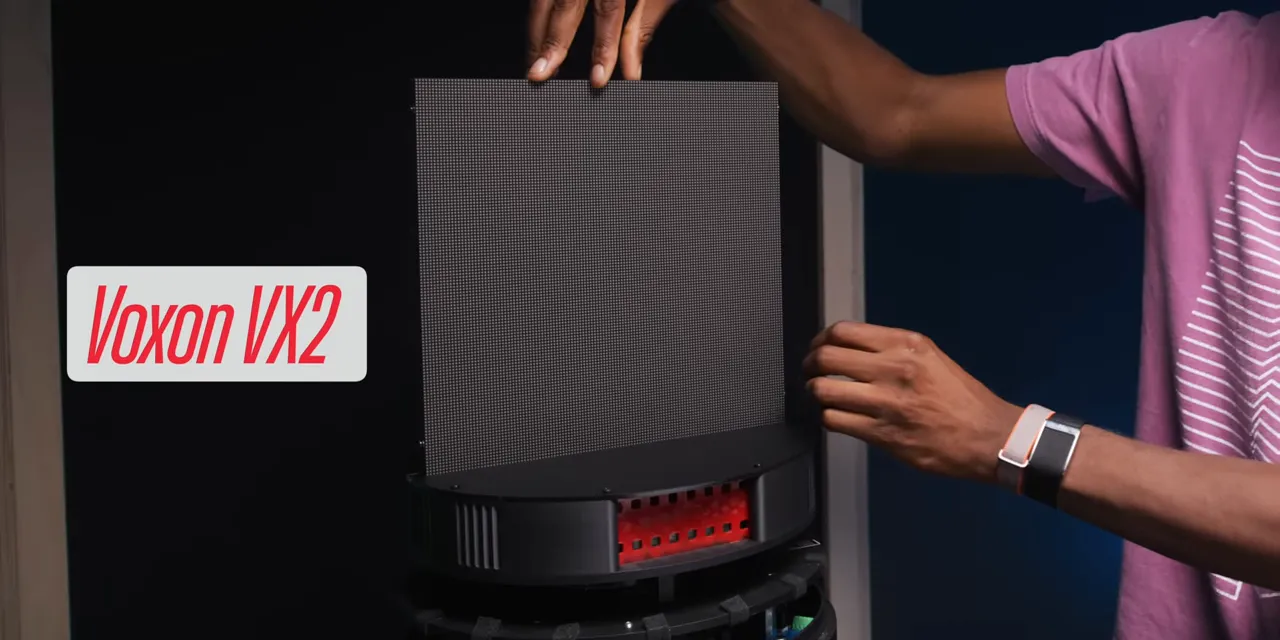
Inside are two displays mounted back-to-back, rotating around a central axis. Up close, you can see individual pixels. These are not especially high-resolution panels, and there is a very good reason for that.
From a Spinning Line to a Three-Dimensional Object
You may have come across those spinning LED fan displays. A line of LEDs moves quickly through a circular path, lighting up at precisely chosen moments. Time those flashes correctly, and the moving lights appear to form a stable image.
A volumetric display takes that idea into another dimension. Instead of sweeping a single line around to form a flat image, it sweeps a panel through a volume.
The software divides a three-dimensional object into slices. As the panels rotate, they show each slice at exactly the right position. Your eyes combine those rapidly presented slices into an object that appears to hover in place.
So the job is not just to display an image. It is to display the correct part of a 3D object at the correct physical angle, thousands of times every second.
Why It Needs 7,200 Updates Per Second
The panels spin at 900 RPM, or 15 rotations per second. Each full rotation is divided into 480 unique slices. With the two-sided arrangement producing the demonstrated 30-frame-per-second volumetric output, the panels need to update 7,200 times per second.
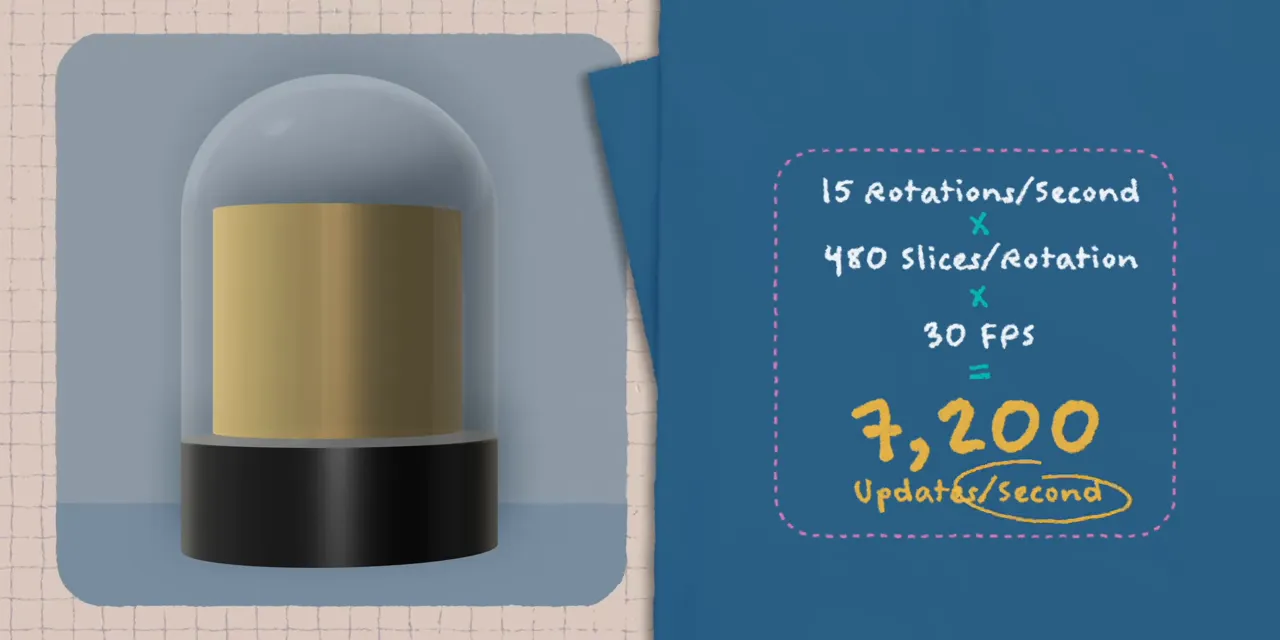
That is a 7,200Hz panel update rate just to create a 30 FPS object. Insane.
This also explains why resolution is a tradeoff. There is already an enormous amount of processing involved in generating and delivering those slices. Adding more pixels would mean even more data to move and calculate.
There is another layer of work, too: error correction. A motor does not necessarily maintain exactly 900 RPM at every instant. The system has to account for those variations so that the slices keep lining up rather than drifting around.
The glass dome has a practical role beyond making the whole thing look like a science-fiction prop. It provides protection around the rapidly spinning hardware and helps reduce air resistance inside.
It also needs specialized software and 3D content prepared for volumetric presentation. This is not just a normal monitor with an unusual enclosure.
The effect is difficult to capture accurately with a camera, but in person it looks fantastic. I have not seen much else quite like it. For a deeper explanation of the technology, the terminology, and the challenge of recording it, there is a Studio deep dive on volumetric displays.
Dell UltraSharp 52: One Monitor That Could Replace Two
I have been a dual-monitor person for a long time. I have also tried plenty of ultrawides that did not quite convince me to give that up.
The Dell UltraSharp 52 U5226KW is the first single monitor that makes me think I could actually replace both displays without losing a beat.
It is a 52-inch, slightly curved, 6K IPS monitor with a 120Hz refresh rate and Thunderbolt connectivity. From far enough away, it almost looks reasonable. In person, it is a pretty imposing object.
A Big Screen That Still Looks Sharp
- Resolution: 6144 × 2560.
- Pixel density: Approximately 129 pixels per inch.
- Refresh rate: 120Hz.
- Panel: IPS with a slightly anti-glare finish.
- Color coverage: 100% sRGB and 99% DCI-P3.
- Price at the time of the hands-on: About $3,000.
Text is sharp, corners look crisp, and you can sit reasonably close without the image falling apart. It looks really good, particularly for something that is not OLED, with thin bezels around the whole panel.
It is not the absolute highest-end color-grading display. But the appeal here is not just image quality or physical size. It is how much of a desk setup this one display can pull together.
The Built-In KVM Is the Real Feature
A KVM switch lets multiple computers share a keyboard, display, and mouse. Dell builds that functionality into this monitor for up to four computers, with software and screen-partitioning options designed around it.
The connections include:
- Thunderbolt 4.
- Two HDMI 2.1 ports.
- Two DisplayPort 1.4 ports.
You can connect multiple machines, switch control between them, and display more than one computer at a time. Instead of a small picture-in-picture window floating over a larger desktop, picture-by-picture modes divide the screen into separate working areas.
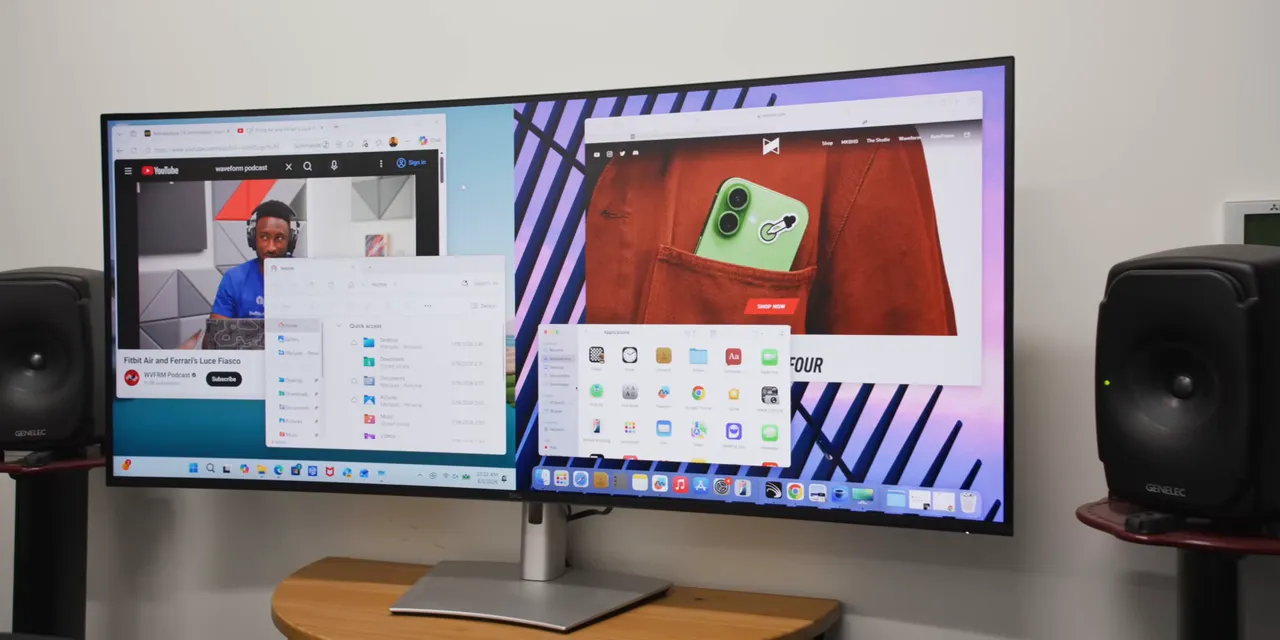
That is what makes the dual-monitor replacement argument convincing. You can put different machines in different parts of the same physical panel. It is a multi-monitor setup living inside one monitor.
The gentle curve helps, too. Some ultrawides have a much more dramatic curve, which looks cool but is not necessarily what I want for work. This shape is closer to the angle of the two displays on my desk.
With two large screens placed completely flat, the outer corners end up quite far away. A little curve brings those edges more directly toward you. It is subtle, but it makes the whole workspace feel easier to take in.
One Cable for the Laptop
The Thunderbolt 4 connection also delivers up to 140 watts of power and carries the monitor's 2.5-gigabit Ethernet connection. One cable can charge your laptop, drive the display, and connect it to the network.
For someone who wants one display to handle an entire desk setup, especially with multiple computers, this is a very compelling option. The Dell UltraSharp 52 listing is available through an affiliate link.
Yes, it costs about as much as two displays. But it also kind of is two displays. I like it.
Project Aura: Between Smart Glasses and a VR Headset
Smart glasses and VR headsets are usually trying to solve different problems.
Glasses aim for convenience: notifications, directions, translations, and useful information in something you might wear for a long time. A full headset goes after immersion, taking over your vision with larger, more detailed virtual experiences.
What if you do not want either extreme, but you like parts of both?
That is where Project Aura fits. It is a collaboration between XREAL, Google, and Qualcomm, and the simplest explanation is that it sits right in the middle.
More Than a Display Plugged Into Another Device
Earlier XREAL glasses had a fairly straightforward idea: put a large virtual screen in front of your face, then connect another device to supply the content. Effectively, you could take an enormous display wherever you went.
Project Aura runs Android XR, so this is its own computer system. The glasses connect by USB Type-C to a smartphone-sized computing puck.
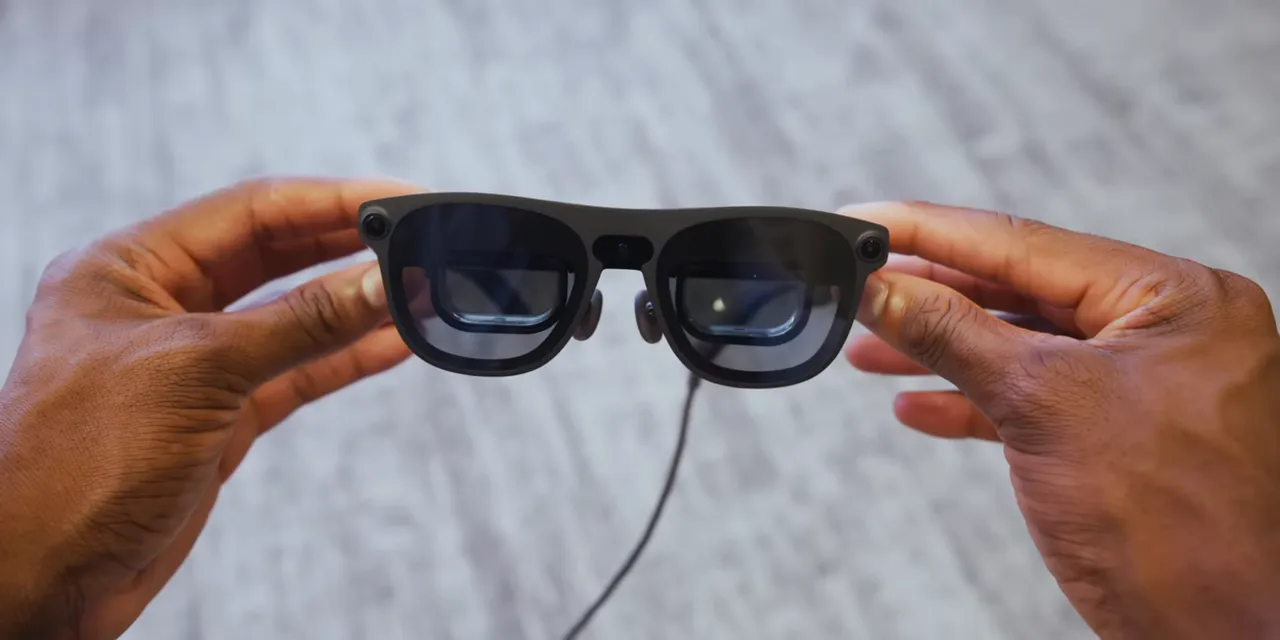
Two cameras at the outer corners handle tracking, while a single RGB camera sits in the middle. The sensors let the system understand its surroundings well enough to anchor graphics in physical space.
That means the interface can stay hovering in front of you rather than behaving like a simple screen attached to your face. You can open Android apps, play videos, and explore virtual environments.
The display specifications are pretty solid for glasses:
- Resolution: 1920 × 1200 per eye.
- Display technology: Micro-OLED.
- Frame rate: 72 FPS.
- Field of view: 70 degrees.
- Glasses weight: 91 grams.
That field of view is impressive for glasses, but it is narrower than a full VR headset. That is the tradeoff. You give up some immersion in exchange for lower weight, more visibility around the interface, and an expected lower price than a full headset. An actual selling price was not provided during this hands-on.
Keeping the Real World in View
Unlike a headset that shows you a camera feed of your surroundings, Aura lets you look through real glass at the actual room behind the interface.
The lighter design makes longer sessions feel more plausible. It also makes getting up and moving around feel more natural. And the software has a useful feature specifically for that: you can pin a video into the corner of your field of view, where it follows along like a small heads-up display.
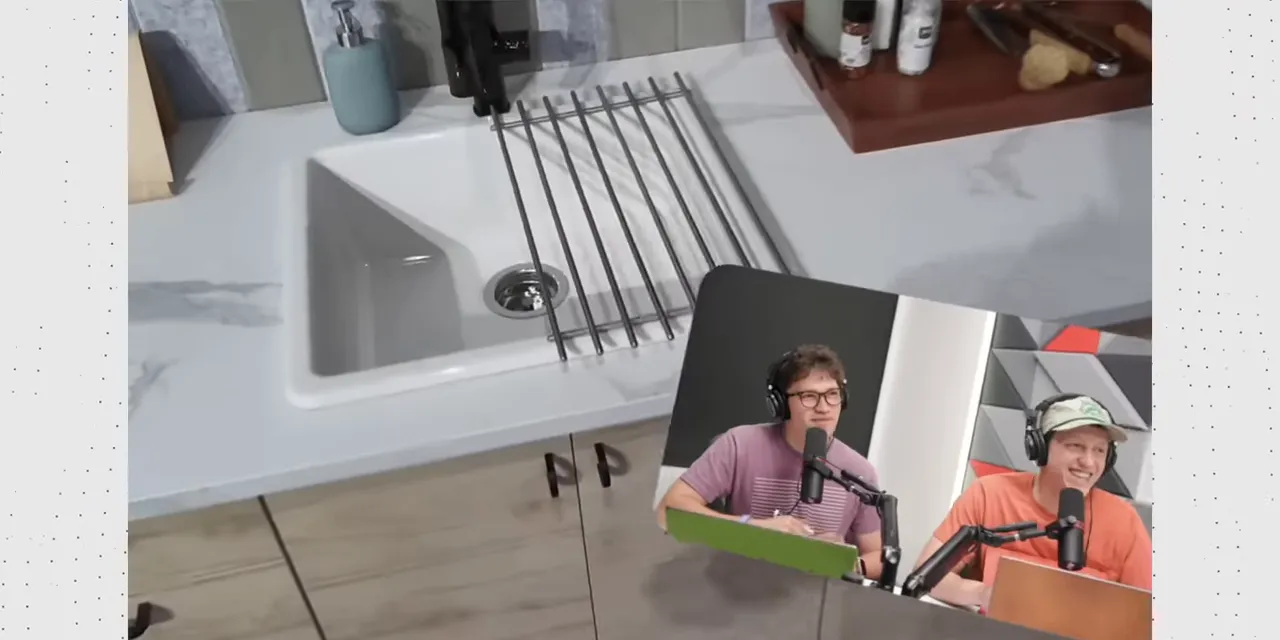
That makes a lot of sense for something like having the Waveform podcast nearby while doing the dishes. In some headset experiences, taking a video along meant pinching the window and physically holding it as you moved. This is a much more deliberate approach to a wearable that people may actually move around in.
If you want fewer distractions, the lenses have electrochromic tint. At their clearest, they are still roughly like a light pair of sunglasses, not completely transparent. At the darkest setting, they become essentially black. A button press can move the experience from visible surroundings to a dark background for a movie.
Split Computing Makes the Hardware More Interesting
The most clever part might not be the displays. It might be the separation between the glasses and the computer.
The puck handles most of the processing, including the operating system and AI workloads. Its power button doubles as a fingerprint reader, and the front surface acts as a touchpad.
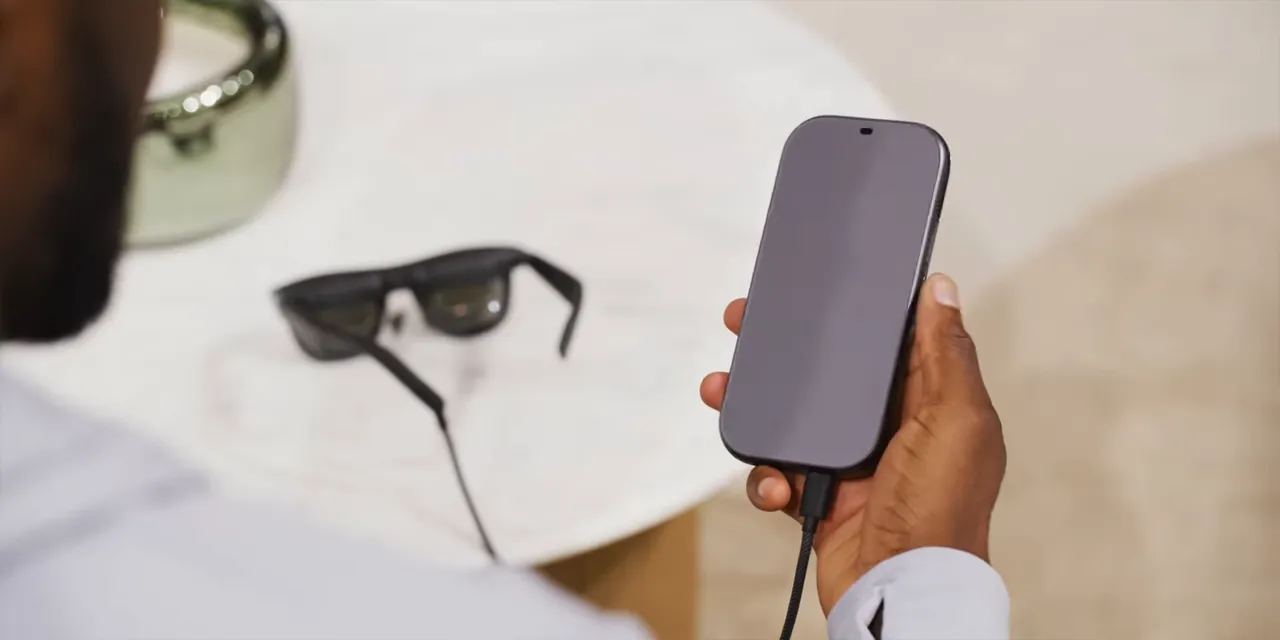
The pitch is split computing: keep the wearable hardware and the main computing hardware separate, with the possibility of upgrading them independently.
If the processor eventually feels outdated, you could potentially replace the puck and keep the glasses. If better frames arrive with a wider field of view or higher resolution, you could potentially replace those while retaining the computer.
That is the modular idea, not a guarantee about compatibility with every future product. But it is a genuinely appealing direction for hardware that could otherwise require replacing everything at once.
I was also impressed by how stable the tracking felt with relatively few cameras and sensors. The demonstrated setup was described as having roughly 3 milliseconds of latency, compared with around 12 milliseconds cited for Vision Pro. Those numbers should not be treated as a complete comparison of the two systems, but the responsiveness here was impressive.
Less than a year after I found myself saying smart glasses were finally getting good, there are already so many different approaches to this category. Small heads-up displays, immersive headsets, and now this middle ground with a separate computer.
That variety is the exciting part. These displays are not all chasing the same specification. They are testing different ways to interact with a computer, organize a workspace, or put digital objects into the world. And that is much more interesting than just another rectangle.
Sponsor: CHEF iQ's Connected Mini Oven
I appreciate cooking being extremely easy, even after getting an S-tier chef rating from Nick DiGiovanni. Small flex.
CHEF iQ sponsored this collection of tech, and its mini oven combines a touchscreen interface with a connected cooking setup. You can choose foods such as fish, chicken, steak, or eggs, and it provides the corresponding cooking programs.
It offers more than 10 cooking modes, including air frying, baking, broiling, and dehydrating. The included six-position egg tray is a particularly useful accessory for making fried-style eggs. The oven reaches 500 degrees Fahrenheit, and its smaller cavity preheats faster than a traditional full-size oven. I have been using my regular oven less.
Pairing it with the iQ Sense thermometer adds internal-temperature monitoring, so the setup can track doneness rather than relying only on a timer. The app lets you check progress from another room and receive a notification when the food is ready.
The sponsor offer is 40% off with code MKBHD at the linked destination.
|


