The most interesting tech reviews aren't always about something brand-new. Sometimes they're about the things that survive years of daily use, even when there are plenty of opportunities to replace them.
That's this desk setup. Some of it has been here for nearly a decade. Some pieces are newer additions to a workflow I've had for years. And a couple of things are probably on their way out.
Tools are still just tools. A great sculpture isn't great because of the chisel. But if an artist uses the same chisel for 10 years, they're going to know it incredibly well. That's the idea here: what works, what gets annoying, and what familiarity is actually worth.
Key Takeaways
- The desk and chair remain standout investments after years of comfortable, reliable daily use.
- The Mac Pro and Apollo Twin are the setup's weakest links despite their professional positioning.
- Consistent reference displays and familiar audio equipment support the studio's editing workflow.
- The mouse-and-trackpad combination reflects years of editing habits rather than a need for extra functionality.
Table of Contents
- The Foundation: Xdesk Air Pro and Herman Miller Embody
- The Mac Pro: Still Powerful, Probably Leaving Soon
- Dual Pro Display XDRs: A Very Specific Kind of Expensive
- The Grovemade Shelf: Storage, Not a Monitor Stand
- The Audio Setup: Familiar Sound, Frustrating Software
- Two Chargers for Two Different Jobs
- The Input Setup: A Mouse, a Trackpad, and a Mechanical Keyboard
- Artisan Ninja FX: Two Mouse Pads, Only One Mouse
- What Actually Earns a Permanent Spot
The Foundation: Xdesk Air Pro and Herman Miller Embody
Xdesk Air Pro: My Forever Desk
The desk itself is kind of ridiculous. It's an Xdesk Air Pro, although mine is old enough that the controller still has the company's previous name, NextDesk, printed on it.
It's a four-legged sit-stand desk with a surface measuring 96 inches wide by 38 inches deep. Basically, eight feet across and a little over three feet deep. That's a massive amount of room for a computer, two displays, studio monitors, and everything else.
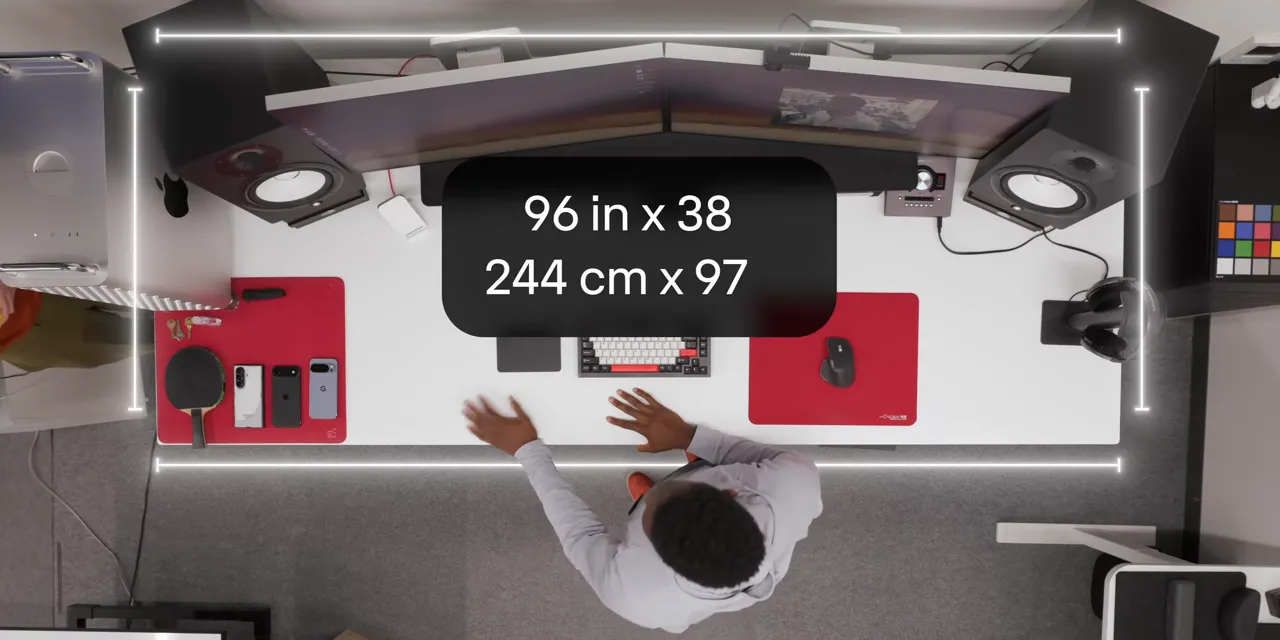
The wild part is that the aluminum surface is only about a quarter-inch thick. With all this weight on it, it doesn't noticeably bend, rock, or shake. It's just solid. After nearly a decade, I still think this might be my forever desk.
My one complaint is tiny, but I notice it: you have to keep holding a preset button while the desk moves to that height. On most other standing desks I've tried, you press the preset once and it takes care of the rest.
That's really it. Everything else has been excellent. Rating: 9/10.
Herman Miller Embody: The Best Kind of Boring Upgrade
The Herman Miller Embody is one of the best investments I've made in this setup.
It's extremely comfortable and has a ton of adjustability. At this point, though, I don't really adjust it anymore. I've dialed it in, and it feels like it fits around my back.
I had an Embody back in college, and I expect to keep using one for the foreseeable future. A chair can be underrated when you're putting together a desk, but investing in your comfort and your back makes a lot of sense when you spend this much time sitting.
Great chair. Rating: 10/10.
The Mac Pro: Still Powerful, Probably Leaving Soon
The M2 Ultra Mac Pro is one of the first things I'd expect to replace. I'm not completely giving up on it yet, but it feels like Apple already has.
This configuration cost roughly $12,000 to $13,000 and has:
- A 24-core CPU.
- A 76-core GPU.
- 192GB of memory.
- 8TB of internal storage.
It's obviously still a powerful computer. The problem is what has happened around it. There's an M3 Ultra in the Mac Studio, and we've moved through M4 and M5 generations without corresponding updates to this tower.
The reason I chose the Mac Pro was expansion. I use one PCIe card inside it: an OWC SSD with around 64TB of storage for live backups. Everything we make gets backed up there. That internal storage is the practical reason this giant tower is still part of the setup.
People also ask why it's on the desk instead of underneath it. With a sit-stand desk, keeping the computer on the floor means the cables need enough slack to follow the desk up and down. Keeping it on the desktop lets everything move together and makes the cables easier to hide.
My likely replacement would be an M5 Ultra Mac Studio, if one arrives, paired with an external Thunderbolt OWC SSD for backups. That's the direction I'm hoping to go, not something I've already switched to.
Until then, the Mac Pro is fine. But “fine” isn't a great place for a computer this expensive to land. Rating: 4/10.
Dual Pro Display XDRs: A Very Specific Kind of Expensive
I've used a dual-monitor setup forever. Right now, that means two Apple Pro Display XDRs.
On paper, the proposition is pretty wild: a 32-inch, 16:9, LED-backlit LCD running at 60Hz, with no built-in webcam and no speakers. The display starts at $5,000. Add a $1,000 stand and a $1,000 nano-texture finish, and each display in this setup comes to $7,000.
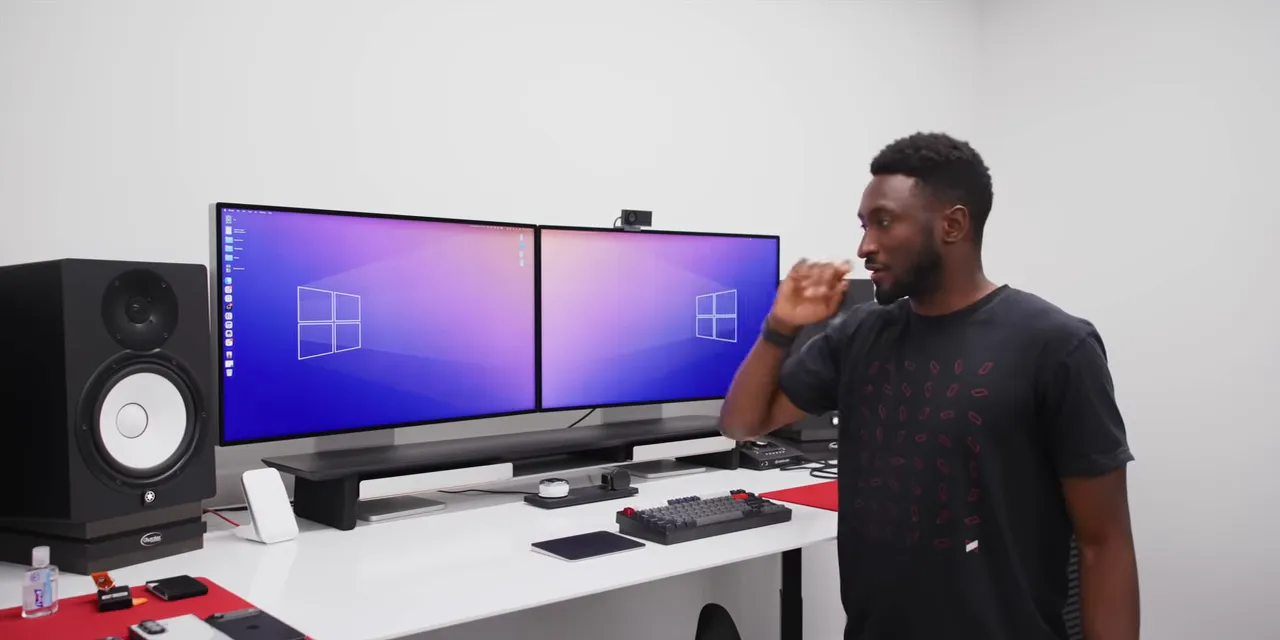
This is a ridiculously niche product, and the reason it works here is the studio workflow. The other people doing color work also use these displays, so when we're matching, comparing, or discussing reference color, we're working from a consistent starting point.
The nano-texture finish is also extremely effective in a bright studio with a whole wall of windows. The downside is cleaning it. Fingerprints and other marks are frustratingly difficult to remove, so I try very hard not to touch the screens.
Where I feel the limitations is all the work that isn't video editing. At those times, I'd really like a higher refresh rate and a few more everyday features. These aren't just dedicated reference displays for me. They're also where I do ordinary computer stuff.
I already have separate speakers and a webcam, so the missing hardware isn't a dealbreaker. The webcam is an Opal C1, connected to a port on the back of one display. Those rear ports are useful. I'm not rating the webcam, though, because I'm an investor in the company.
The displays do their specialized job well, even if they're far from the obvious choice for most desks. Rating: 8/10.
The Grovemade Shelf: Storage, Not a Monitor Stand
The displays are standing directly on the desk, not on the Grovemade desk shelf. I still keep the shelf because it creates a handy place to stash the little things that would otherwise spread across the desktop.
That means cables, SIM eject tools, pens, flash drives, a Sharpie, and all the other small stuff that accumulates around a working desk.
Grovemade sent this one over. It's the black version, although there are other finishes. These shelves are pricey, and part of what you're paying for is the ability to support weight. I'm not really taking advantage of that here.
Could I recreate this storage arrangement with something much cheaper? Absolutely. But this does exactly what I want, and I like how it looks. Rating: 10/10.
The Audio Setup: Familiar Sound, Frustrating Software
Apollo Twin: A Great Volume Knob With Too Much Maintenance
My external audio interface is a Universal Audio Apollo Twin. It connects over Thunderbolt, handles digital-to-analog conversion, and feeds both my speakers and headphones.
It's also a giant, glorified volume knob. And honestly, that part is very satisfying.
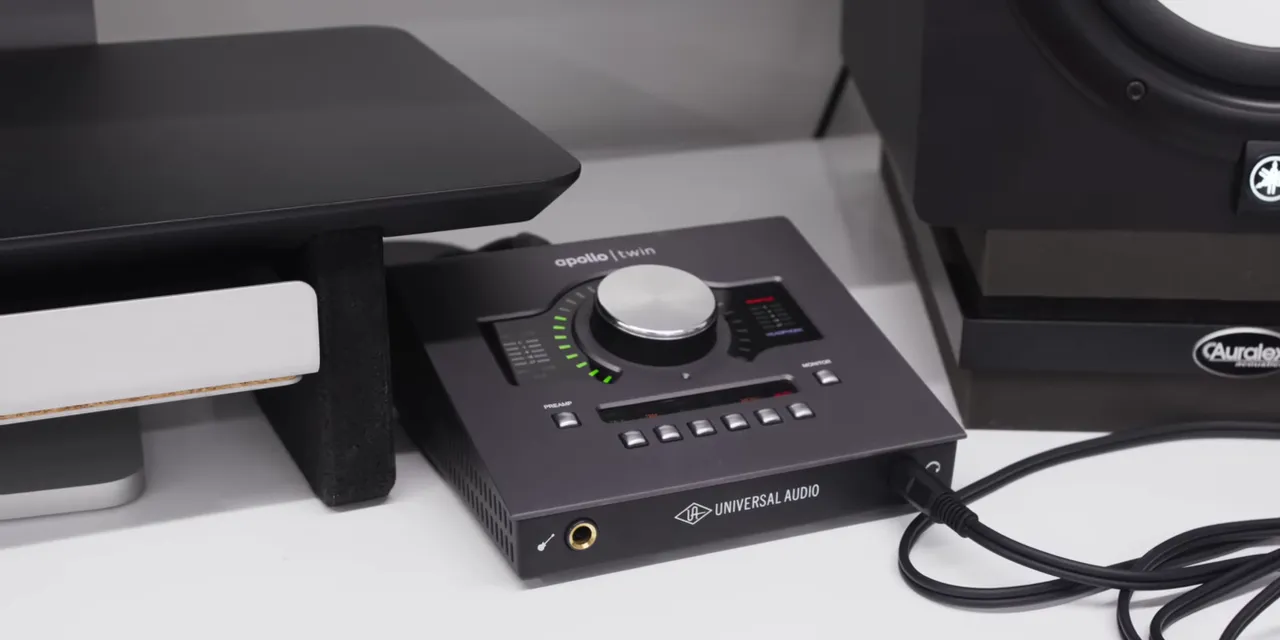
There's a whole ecosystem of software and plugins that comes with it, but I barely use those extras. What I do deal with is software that has been buggier than I'd like.
I have to reset it too often. Sometimes an update causes it to stop recognizing things properly, and I end up dealing with firmware downloads. It gets the job done, but it asks for more attention than this part of the setup should need.
We've used it here for years. There are plenty of other devices that could do what I need, and I wish this one had fewer issues. Rating: 4/10.
Yamaha HS8: The Speakers I Know Inside Out
The Yamaha HS8s are probably iconic to the look of this desk at this point. They're active near-field studio monitors, and I love them.
They work well for reference listening, video editing, audio editing, and just listening to music. Each has an eight-inch woofer and a one-inch tweeter. With bass reaching into the 40Hz range, I don't feel the need for a subwoofer in this setup.
There's one weird quirk: occasionally, a phone placed right next to a speaker causes audible radio-frequency interference. I'll hear a faint buzz, sometimes right before a call or message comes through.
The wireless charger beside the speaker doesn't exactly help with keeping phones away. I know. I've accepted this arrangement.
More importantly, I know how these speakers are supposed to sound after spending so long sitting between them. There are probably technically better monitors I could buy, but that familiarity matters when I'm making editing decisions.
For anyone comparing the lineup, Yamaha's HS Series overview is a useful reference. For my own desk, I'm happy staying with these. Rating: 9/10.
Sennheiser HD 650: Open-Back Headphones Make Sense Here
My headphones are the Sennheiser HD 650s, sitting on a pretty ordinary Kanto stand. Any decent stand would do.
The headphones matter much more. They're light, comfortable, and sound great, which is important because I wear them for a lot of the day.
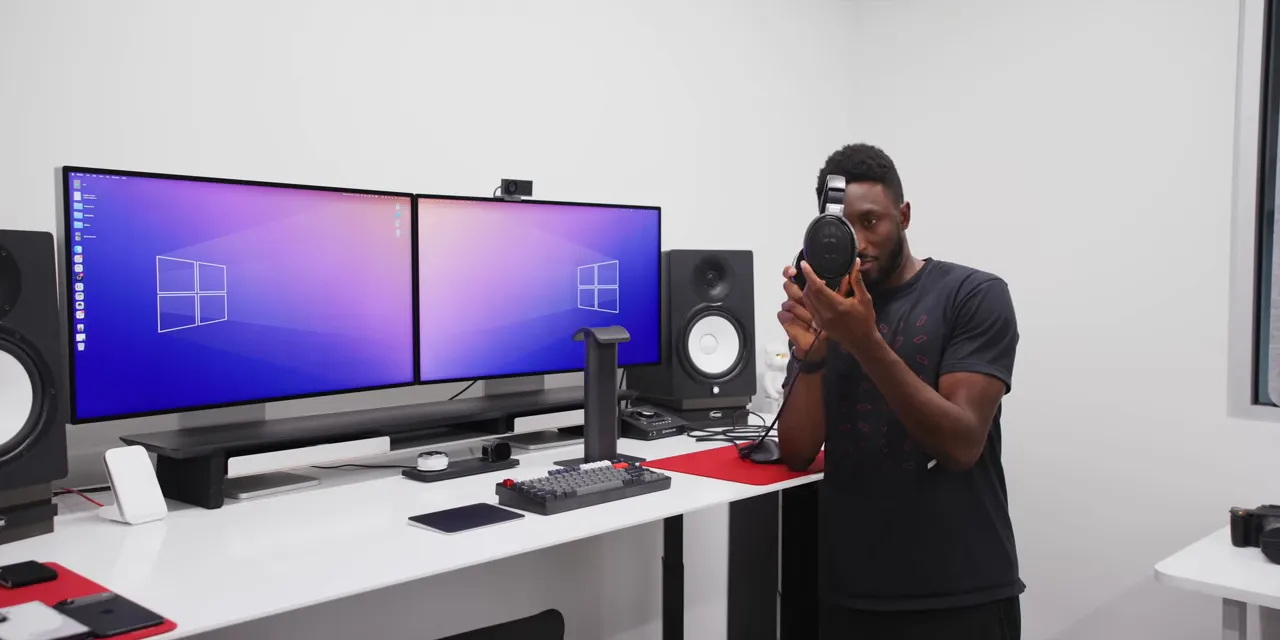
Open-back headphones are particularly useful in this studio. People can ask me a question while I'm editing, and I can hear them without constantly taking the headphones off.
They're good for reference work, editing, and occasional music listening. They plug straight into the audio interface, and once again, I know their sound really well.
I tried to think of something I'd change. Wireless would be convenient, but that would also mean a battery, probably more weight, and potentially less comfort. So I'm not even sure I'd want that trade.
These are great at being what they are. Rating: 8/10.
Two Chargers for Two Different Jobs
Belkin Three-in-One: Convenient, Not Particularly Fast
The Belkin three-in-one charging station sits behind the keyboard and is easy to slide out of the way when I don't need it.
It gives me a magnetic wireless charging position for a phone, another nonmagnetic Qi charging area, and an Apple Watch charger. I've got an Apple Watch Ultra here.
A fun side benefit of using multiple Apple Watches is that I can swap between them and have the next one pick up where the other left off.
The Belkin is useful, but it's not especially fast. Rating: 6/10.
Oppo AirVOOC: The Faster Wireless Option
The upright charger near the left speaker is an older Oppo AirVOOC model, connected with a OnePlus cable to power underneath the desk.
What I like is how forgiving the placement is. In my use, phones of different sizes generally line up with the charging coils when I set them on the stand. That's a big deal when I'm constantly rotating through test phones.
It's my go-to fast wireless charger. That doesn't mean every phone charges at the same maximum speed, but the stand is convenient across the phones I use. Rating: 8/10.
The Input Setup: A Mouse, a Trackpad, and a Mechanical Keyboard
Why I Use a Mouse and Magic Trackpad Together
This is probably the weirdest part of the setup, and you can blame a decade of editing in Final Cut Pro for it.
I use a mouse with my right hand and a wireless Magic Trackpad with my left. The trackpad handles horizontal timeline scrolling, moving around, pinching, and zooming. The mouse handles pretty much everything else.
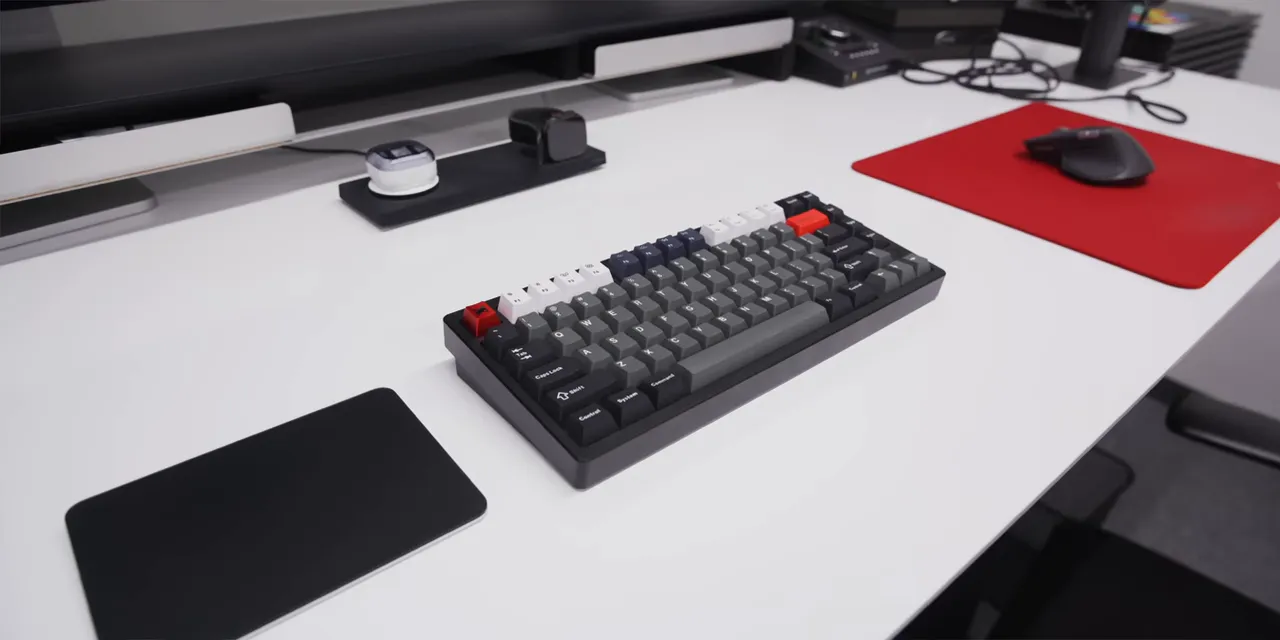
The mouse can already do a lot of those things. This isn't about unlocking functionality I couldn't otherwise get. It's just how my brain is wired after years of working this way.
This is the USB-C Magic Trackpad, although that doesn't change the workflow. My complaint is battery life: it dies every couple of weeks, and I find that annoying. No separate numerical rating for this one.
Rainy 75 Lite: One of the Better Values on the Desk
The Rainy 75 Lite is one of the newest additions. Before this, I used a Keychron for a couple of years.
Most of my mechanical keyboard decisions come from Andrew, our studio manager. He tells me to try something, says I'll like it, and he's usually right.
My requirements are pretty simple:
- It needs to work with a Mac.
- It needs the common Mac keys, but I don't need a number pad.
- It needs to be wireless.
The Rainy checks all those boxes. It's also surprisingly heavy and solid. Mine has an artisan MKBHD keycap in the corner and some Keychron Dolch keycaps mixed in, so the finished keyboard is a bit of a hodgepodge.
I'm a big fan of how it feels and sounds. Battery life is good for a couple of weeks at a time, and I turn the backlight all the way down to stretch it further.
Compared with a lot of the equipment around it, this is one of the better-priced pieces of the entire setup. It's a switch I don't regret. Rating: 8/10.
Logitech MX Master 4: Built for the Work I Actually Do
The mouse is a Logitech MX Master 4. Logitech brought these to the studio before launch for us to try, and mine has my name engraved on it.
It's quiet, the software is really good, and this generation adds haptics.
I'm not a gamer looking for the highest polling rate or the lowest possible latency. I'm editing and getting work done on 60Hz displays. For that, this mouse works really well.
I'm also optimistic about how the finish will age. Previous MX Master mice could develop that worn, rubbery look after enough use. I think this one will hold up better, although that's still an expectation rather than a long-term result.
Really like this mouse. Rating: 9/10.
Artisan Ninja FX: Two Mouse Pads, Only One Mouse
The mouse pad is one of the things I get asked about most. It's an Artisan Ninja FX, and I've been using this style for years.
I like the color, shape, texture, and firmness. Enough that when one wore out, I went looking for the same thing again instead of trying something new.
Finding a replacement wasn't always easy. At one point, I imported one through Amazon Japan for around $75. They do still sell them, but sourcing the exact replacement has been more effort than you'd expect for a mouse pad.
There are actually two on the desk. The one on the right is for the mouse. The one on the left creates a soft landing area on an otherwise metal desktop.
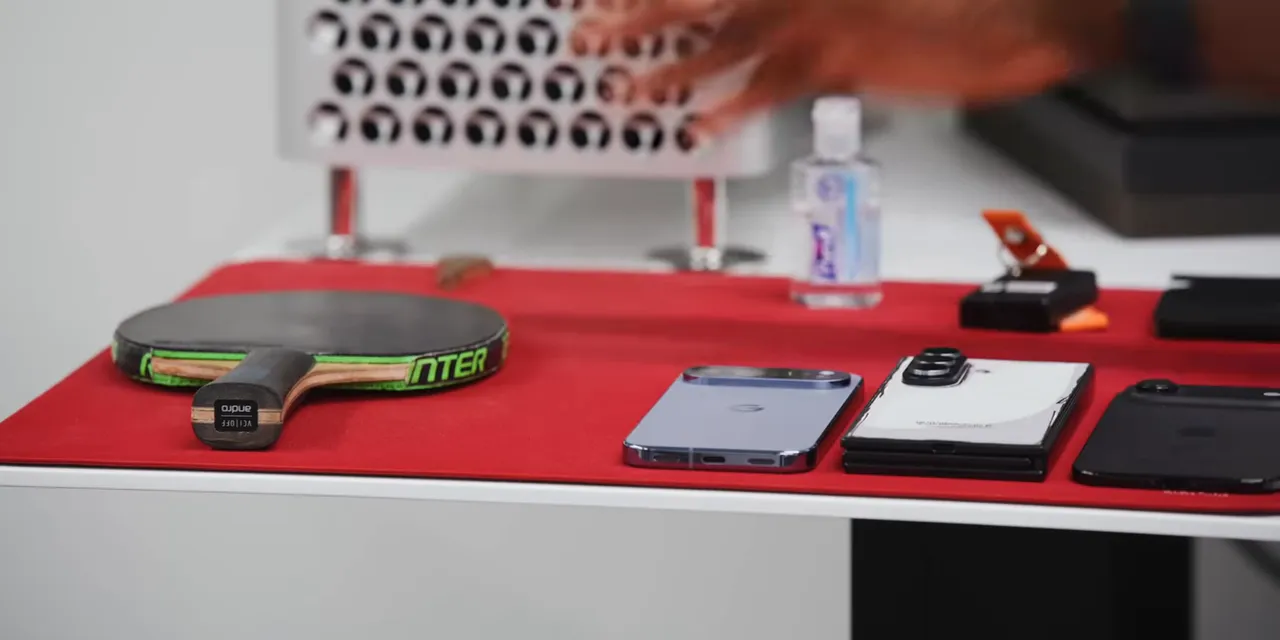
That's where I keep phones I'm still testing and haven't wiped yet, a table tennis paddle from Adam Bobrow, keys for whatever car I'm testing, my Ridge wallet, hand sanitizer, and the other things that inevitably end up on a desk.
My only real wish is better durability. I tend to replace a pad about every two years as the surface wears in. Otherwise, it's pretty great. Rating: 9/10.
What Actually Earns a Permanent Spot
This isn't a setup where every expensive item gets a glowing recommendation. The Mac Pro and audio interface are two of the weaker links, while the chair and desk have justified their place through years of reliable daily use.
The recurring theme is familiarity. I know what the speakers and headphones should sound like. I know exactly how I move through an edit with the mouse and trackpad. Those things have real value, even when something technically better exists.
And none of this means you need to spend this much. We put together a more affordable version of this desk setup for less than the price of one of these displays. That equipment is really good, too.
The goal isn't to own every item here. It's to find the tools that fit the way you work, learn them well, and recognize when something is helping versus when you're just putting up with it.


