iOS 27 is the refinement update. There isn’t a huge, sweeping redesign. Instead, there are a lot of little improvements, some surprisingly useful AI tools, and a whole collection of things that should have happened years ago.
I’ve been running the beta since WWDC, and this has been one of the most stable sets of Apple developer betas I’ve tested in a long time. That doesn’t necessarily mean much if you’re waiting for the official September release, but it’s a good sign. The public beta is available now, too.
After spending some time with it, these are my five favorite changes, counting down to the one that makes the biggest difference. And, somewhat unexpectedly, my number one isn’t an AI feature.
Quick Summary
- iOS 27 prioritizes refinement, with noticeable performance improvements that matter most on older iPhones.
- The new Siri combines conversational answers with personal context drawn from supported app data.
- Separate alarm volume, CarPlay scrubbing, and custom AirPods EQ address long-standing everyday frustrations.
- Photos gains cloud-powered Extend and Spatial Reframe tools for generating content beyond the original capture.
Table of Contents
- 5. New Photo Editing Tools: Extend and Spatial Reframe
- 4. The “Frickin’ Finally” Features
- 3. Aesthetic Tweaks That Make iOS Easier to Live With
- 2. The New Siri Is Actually Pretty Good
- Honorable Mentions: Four More Useful Changes
- 1. Everything Feels Faster, Especially on Older iPhones
- The Verdict: Refinement Is the Point
5. New Photo Editing Tools: Extend and Spatial Reframe
The Photos app gets two new editing tools: Extend and Spatial Reframe. Clean Up, the existing tool for removing unwanted background objects, has also gotten noticeably better.
But these new additions go beyond removing something from an image. They generate things the camera never captured.
Extend: Change the Frame Without Cropping Everything Away
Extend uses generative AI to expand the edges of a photo in any direction. It doesn’t matter which camera originally took the picture.
That might sound like a gimmick, but changing an image’s aspect ratio is a pretty common task for me in Photoshop. Maybe I took a portrait photo, but now I need a landscape image for a project. Cropping would cut away too much of the subject. Extending the background gives me another option.
In Photos, you can select Extend and pinch outward to give the image more room. It then generates more of whatever appears around the edges.
As you’d expect, it works best with consistent patterns, backgrounds, and abstract textures. What surprised me is how well it can handle entire objects, too. Sometimes it does a genuinely impressive job of creating more of something from scratch.
Spatial Reframe: Move the Camera After Taking the Photo
Spatial Reframe is the crazier one. It lets you drag around and change the apparent perspective of an image, almost as if you could move the camera through physical space after taking the picture.
Of course, the camera never captured those other angles. The tool takes some time to generate the missing pixels and fill in what it thinks should be there.

The quality falls apart more quickly than it does with Extend. It’s an impressive tech demo, but I also see fewer practical reasons to use it.
One useful case is a symmetrical composition. You get a shot of a building or a hallway about 96 percent right, then realize the perspective is just slightly off. Reframe can help you get those last few percent and line things up more precisely.
Is that still a photo you took with your phone? In my opinion, not really. At that point, part of the image is a generated interpretation of a different camera position. But the capability is still pretty wild.
The Limits Worth Knowing
- Both tools require an internet connection. They use larger cloud-based models, so trying them offline produces an error.
- You can’t repeatedly extend or reframe the same photo. After an edit, Photos limits another pass of the same kind.
- There is a workaround. Taking a screenshot of the result lets you treat it as a fresh image and apply additional edits.
For me, Extend is the more immediately useful feature. Spatial Reframe is the one that makes you stop and think about what a photo even is anymore.
4. The “Frickin’ Finally” Features
This entire category is about things Apple resisted for so long that their absence became a meme. Now, apparently, somebody found the time.
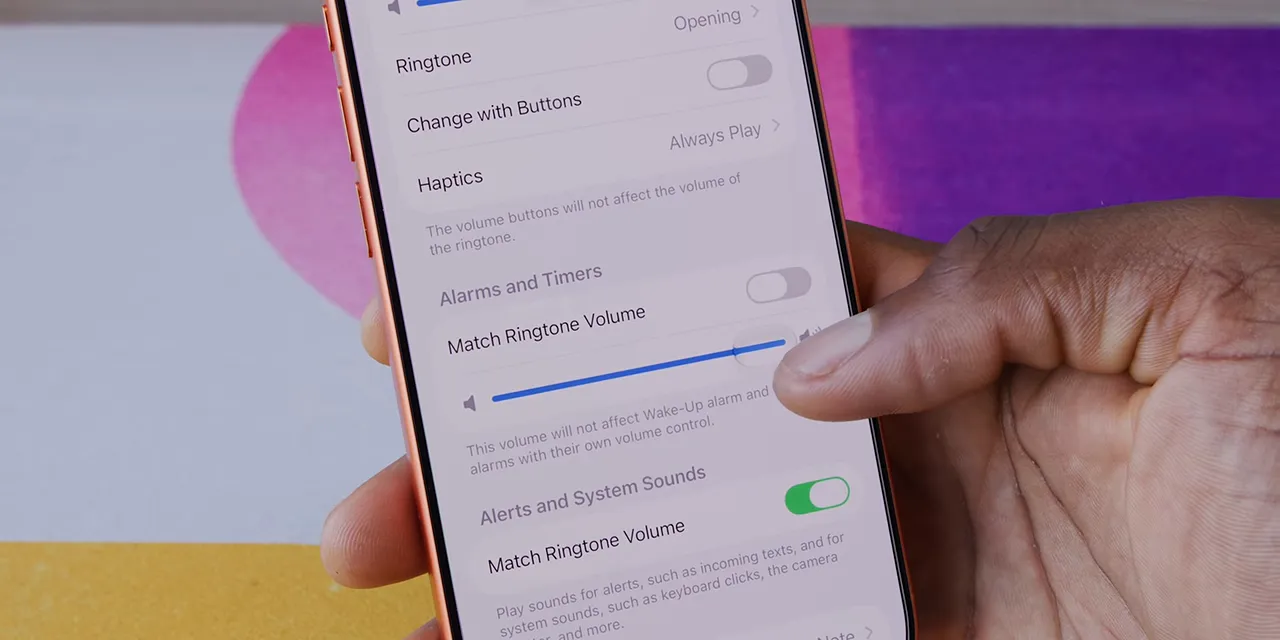
Separate Alarm Volume
You can finally set alarm volume separately from the rest of the system volume.
Finally.
Android has offered this kind of separation for ages, and I still think its individual volume controls communicate things more clearly. But at this point, I’ll take it. Being able to choose how loud your alarm should be without tying it to everything else is a basic, useful improvement.
Better Switching From Weak Wi-Fi to Cellular
This one solves an annoyance I’ve dealt with for years. I leave the house, open Maps, and want traffic information for the first couple of blocks. But the phone is still hanging onto the very edge of my home Wi-Fi connection.
There’s practically a specific tree I have to pass before the phone finally gives up, switches to cellular, and starts loading everything properly.
In iOS 27, that handoff has been noticeably better. I leave, it switches to cellular, and things keep moving. It’s not a flashy feature, but that’s exactly the kind of everyday friction a refinement update should remove.
Timeline Scrubbing in CarPlay
CarPlay’s Now Playing screen finally lets you scrub backward and forward along the media timeline.
Instead of being limited to the existing playback controls, you can move directly to another point in whatever you’re playing. Again, this is an extremely basic interaction. It’s also one I’m very happy to finally have.
Custom EQ for AirPods
AirPods finally get a custom equalizer, provided they have an H2 chip or later.
It’s only a three-band EQ, so this isn’t some incredibly elaborate audio-tuning system. But it gives you actual control over the sound, which is something I’d almost convinced myself Apple was holding back on purpose.
I don’t know who had to lose a bet for this whole collection of changes to happen. Whoever it was, thank you.
3. Aesthetic Tweaks That Make iOS Easier to Live With
iOS 26 was the big Liquid Glass update. That design language isn’t going anywhere, but iOS 27 makes a bunch of smaller adjustments throughout the interface.
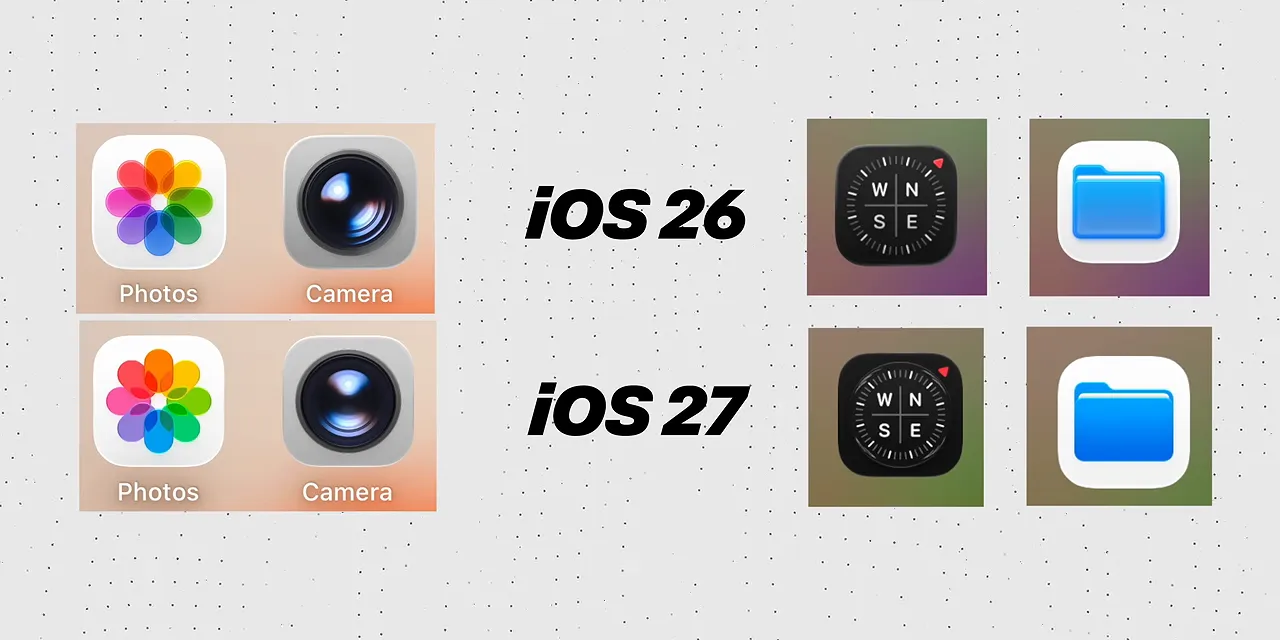
On the Home Screen, icons look a little different. Text and shadows are crisper and easier to read. Apple has also revised several of its stock app icons.
The more important change is a new Appearances tab with an actual slider for how much Liquid Glass you want.
- In the middle: The default appearance, which looks slightly more opaque to me than before.
- To the right: A more opaque, frosted look.
- To the left: A more transparent, glassy look for the true Liquid Glass enthusiasts.
This is basic customization, but I appreciate having it. If Apple is committed to this visual direction, giving people control over its intensity makes sense.
There’s also a compact clock option on the Lock Screen if you want to shrink the time display way down.
And the Home Screen’s swipe-down search has been completely redesigned and combined with Siri. Which brings us to the much bigger change.
2. The New Siri Is Actually Pretty Good
The bar for Siri was low. For a long time, I probably had more accidental Siri activations than intentional ones.
With Google’s help, this version has received a ground-up overhaul. It finally feels like it has caught up to the basic functionality I expect from a modern phone assistant, including something like Gemini on Android.
A New Interface, a Standalone App, and a Better Voice
You still activate Siri by holding the side button. Now, a translucent, crystal-like orb expands from the Dynamic Island and moves as you speak.
The response first appears as an overlay. You can drag its bottom edge downward to expand it into a conversation window, then go full screen to open the new standalone Siri app.
That app keeps a history of most requests, particularly the bigger interactions you might want to revisit. It doesn’t save every single request, but it’s much more useful than having everything disappear after a brief exchange.
The voice is also more expressive and human-like, with customization options. My favorite detail: you can make Siri speak faster. Small thing, big appreciation.
Conversations and On-Screen Awareness
Siri can now retain context through follow-up questions, so a conversation doesn’t have to start over with every request.
It also uses broader world knowledge to answer questions instead of so often falling back to a web search. And it can respond to questions about what’s currently on your screen.
There’s a catch with that last one: you have to phrase the request correctly. There isn’t a dedicated interface control that explicitly tells Siri to inspect the screen. The capability is there, but discovering how to trigger it is less obvious than it could be.
Personal Context Is the Biggest Upgrade
The most interesting capability is Siri’s ability to search the information already on your phone: messages, emails, calendar events, photos, and other supported Apple app data.
After installing the update, the phone indexes this information in the background. It displays a message about optimizing for the new Siri. For me, that process took a couple of days.
Once it finished, I could ask about a watch Dave had sent me. Siri found the iMessage conversation and identified the Light Meter Watch, LMW-V1, from Kickstarter, along with the context of his recommendation.
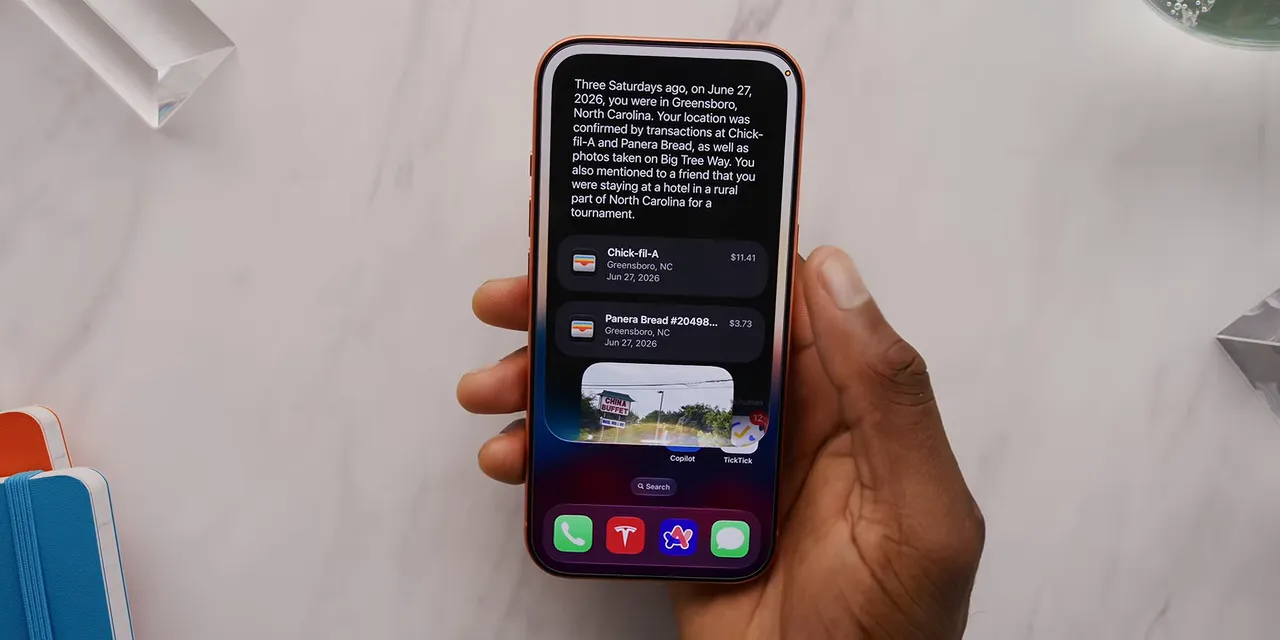
I also asked where I had been two Saturdays earlier. Siri identified Greensboro, North Carolina, and brought together details about a hotel stay and a game that day.
Expanding that answer showed supporting information from Wallet transactions and messages, along with what appeared to be location tags from photos. That’s much more useful than simply matching a keyword in one app.
Google is doing something similar with Gemini by pulling from cloud services such as Gmail and Google Calendar. I prefer this implementation so far: it feels faster with its locally indexed information, and the results are more visual.
That doesn’t mean every Siri capability works offline. Local indexing is the part I’m describing here.
A Siri Mode in the Camera
Siri is also multimodal. Alongside its on-screen awareness, there’s a new Siri mode one swipe away in the Camera app.
You can take a photo in that mode and ask questions about the image. Think of the kind of visual identification you might already associate with Google Lens.
It’s honestly pretty good. This isn’t some completely new category of functionality, but it gets Siri to the baseline I expect from an AI assistant on a phone in 2026. That alone is a huge improvement.
The Big Unfinished Piece: Third-Party Apps
Here’s the limitation: broad third-party app integration isn’t here yet.
Siri works best when your information lives in Apple’s apps. Finding a conversation in iMessage is one thing. Finding a conversation in WhatsApp, Telegram, or the Gmail app is another. It doesn’t automatically know about all of that information.
My understanding is that developers will be able to update their apps to expose supported information to Siri. A messaging app, for example, could identify its messages as content Siri can search.
There are already small signs of this appearing. When I asked for my car’s battery status, Siri offered to enable access to supported apps. After I allowed access to Porsche’s app, it could provide the information.
Rivian’s app, despite being installed with a widget on my Home Screen, didn’t appear in that selection. That’s the distinction: having an app installed isn’t enough. The integration has to be there.
So now it’s a waiting game. I expect more developer updates around September, when the new iPhones arrive and iOS 27 reaches a much larger audience. But how much that expands Siri’s usefulness is still to be determined.
For now, Siri is pretty good. I haven’t been able to say that very often.
Honorable Mentions: Four More Useful Changes
A few additions didn’t make my top five, but they’re worth knowing about.
- Nutrition lookup in Photos: Open a food photo and you can get a nutrition lookup button that rates how healthy it thinks the food is on a sliding scale. It isn’t trying to provide a detailed calorie count. Potentially interesting, when it’s accurate.
- Automatic password changes: The Passwords app can automatically log in and replace weak or compromised passwords. That’s a substantial amount of work to hand over to your password manager.
- Shortcuts from natural language: Describe a shortcut you want, and Siri can build it from scratch. You can then edit the result afterward.
- Threaded replies with Android users: You can now use threaded replies in conversations with Android users in Messages. Another one for the “finally” collection.
1. Everything Feels Faster, Especially on Older iPhones
My favorite iOS 27 feature is the least visually dramatic one: the phone feels noticeably faster.
Apple announced some huge performance improvements:
- 70 percent faster loading of newly captured photos into the gallery.
- 30 percent faster app loading across the board.
- 80 percent faster AirDrops.
Those are Apple’s announced figures, not measurements from my own benchmark testing. But there’s a difference between hearing a number onstage and actually using a phone that feels smoother and snappier. I can feel the improvement.
On newer hardware, the difference is subtler. An already-fast phone doesn’t suddenly feel like an entirely different device, although faster AirDrops are noticeable.
Where this really shines is older hardware. Compatibility goes back to the iPhone 11 from 2019, and the optimized CPU scheduler makes a bigger difference to how responsive that older phone feels.
After years of discussion about software updates slowing phones down, it’s refreshing to get an update focused on making older hardware feel newer again.
I’m completely here for software that doesn’t need to change everything visually, but instead tackles the bloat and inefficiencies behind the scenes. Faster app launches and smoother everyday interactions affect nearly everything you do. That’s why speed takes my number one spot.
The Verdict: Refinement Is the Point
iOS 27 isn’t trying to sell an entirely new-looking iPhone experience. It’s making the existing one better: more practical photo editing, overdue controls, adjustable visual effects, a genuinely useful Siri, and performance improvements you can feel.
The beta has been unusually solid in my experience, but my recommendation is about the official release. When that update reaches your phone, this is one I’d install.
Not because every feature is revolutionary. Because a lot of the things you do every day should work a little better. It’s about time.


