It’s a MacBook Pro with a touchscreen. Finally. But the more time I spend with it, the less I touch the screen.
That probably sounds strange given how much of Apple’s marketing revolves around poking at Final Cut Pro, manipulating 3D models, and playing virtual keyboards in Logic Pro. Touch is the headline. I just don’t think it’s the reason to buy this computer.
I took extra time with this review because I’m squarely in the target demographic. I’m considering a MacBook Pro with the PROLED XDR display as my full-time laptop, including editing videos away from the studio. And the things that keep pulling me toward it are much more practical: an incredible display, a noticeably lighter body, and a collection of smaller improvements.
The touchscreen is something this laptop happens to have. The screen itself is the upgrade.
Quick Summary
- The tandem OLED display is the strongest reason to pay the $400 premium.
- The thinner, lighter chassis maintains comparable sustained performance by running its fans faster.
- Nano-texture reduces direct reflections but slightly compromises the OLED panel’s contrast and sharpness.
- Touch is exceptionally responsive, but it remains optional rather than essential to the MacBook experience.
Table of Contents
- The Tandem OLED Display Is the Main Event
- Nano-Texture Is No Longer an Automatic Choice
- A Thinner, Lighter MacBook Pro Without Slower Workloads
- The Little Things Add Up
- The Touchscreen Is Responsive. I Still Barely Use It.
- Is the PROLED Upgrade Worth $400?
- Protecting the Finish: dbrand
The Tandem OLED Display Is the Main Event
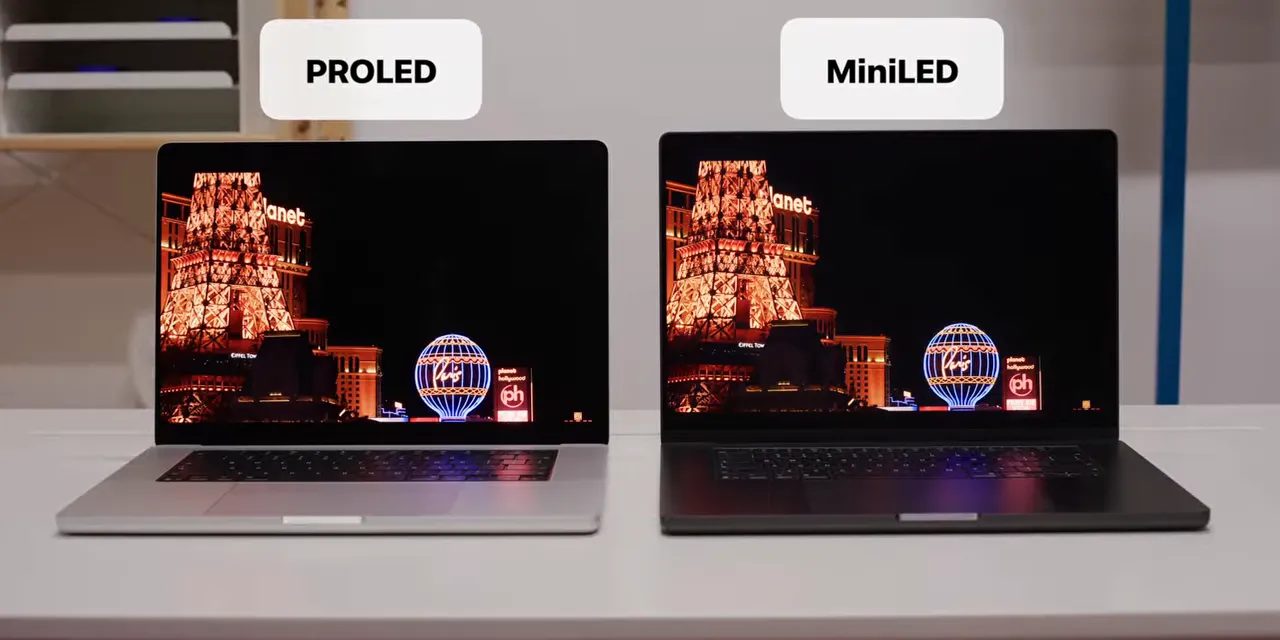
This is the best-looking display I think I’ve ever seen in a laptop. There are other excellent laptop displays. There are even other tandem OLED displays in high-end laptops. This one just happens to be my favorite.
The numbers are already impressive:
- 1,000 nits of sustained full-screen brightness, with up to 2,000 nits peak brightness.
- A 10,000,000:1 contrast ratio, with the deep blacks you expect from OLED.
- Complete Adobe RGB and P3 coverage in a single mode, paired with excellent color accuracy.
You can take it outside in broad daylight without worrying about whether it gets bright enough. But brightness isn’t even the most noticeable part. It’s the contrast, combined with how well the panel is tuned.
Some OLED displays lean into an oversaturated, overly dramatic look. This doesn’t. You get the impressive contrast without feeling like every color has been turned up just to grab your attention.
Why OLED Makes a Difference Beyond Black Levels
With mini-LED, a lot of engineering goes into minimizing blooming by dividing the backlight into many small zones. With OLED display technology, the pixels produce their own light. There’s no separate backlight creating a halo around a bright object on a dark background.
That means no backlight blooming. It also means much faster pixel response times, so fast-moving content feels noticeably quicker. This isn’t suddenly a gaming laptop, but you don’t need to be gaming to appreciate that improvement.
Off-axis viewing angles are better, too. And Apple has made several physical changes around the panel:
- The display extends farther toward the bottom of the frame, giving you a little more screen.
- The bezels are thinner.
- The bottom corners are now rounded, making the whole display feel more symmetrical.
- A Dynamic Island replaces the notch at the top.
That last change actually feels like useful extra room if, like me, you have a lot of menu bar items. It isn’t just a different shape cut out of the screen.
The mini-LED MacBook Pro displays were already really good. These are better enough that, if photography, videography, or color work is a major part of your day, I think the display alone justifies the $400 premium.
Nano-Texture Is No Longer an Automatic Choice
I’m normally a nano-texture person. I edit on planes, in hotel lobbies, and in random corners at tech events. The lighting is always different, and I don’t always get to choose where I sit. Usually, I just check the box.
This time, it’s more complicated.
At the launch event, in a weird mixed-lighting environment, I genuinely struggled to tell the glossy and nano-texture versions apart sitting next to each other. The review unit I’ve been using is glossy, and it does a surprisingly good job of reducing ambient reflections.
A point light directly behind you is still a problem. That’s where nano-texture remains the better option.
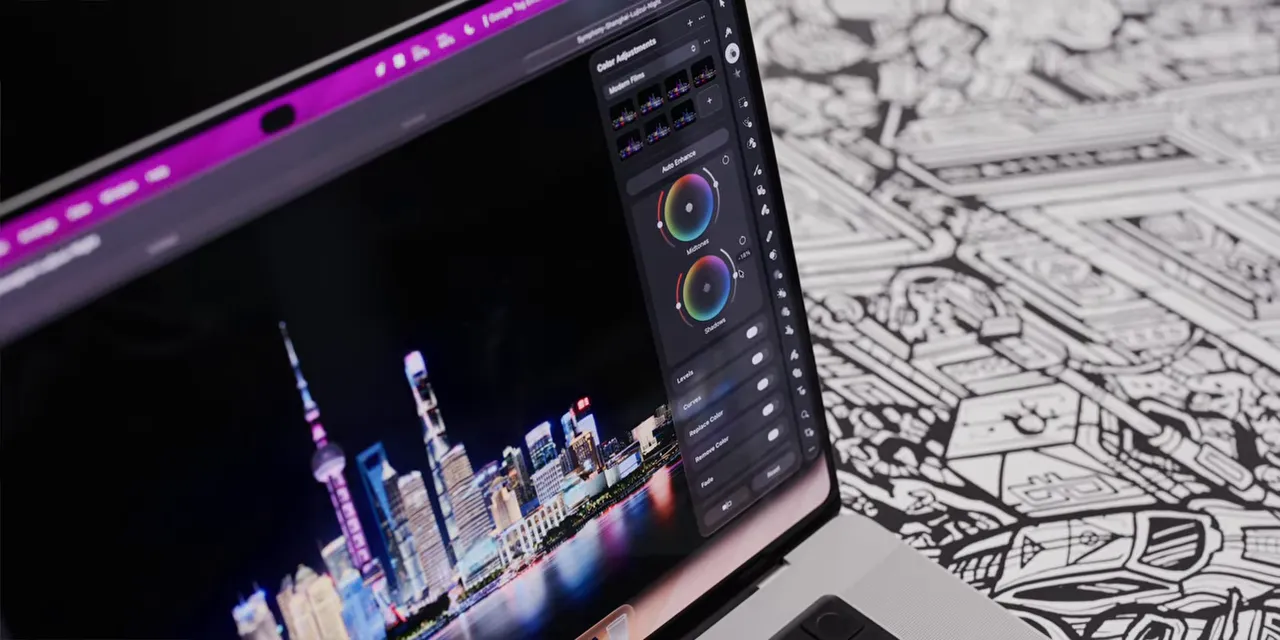
The trade-off is that nano-texture slightly reduces contrast and sharpness. Slightly. That’s often a perfectly reasonable compromise, but here we’re talking about an OLED display whose biggest strengths include its contrast and inky blacks. Giving up even a little of that takes more consideration.
Touch adds another wrinkle. Nano-texture has a soft, smooth finish that’s easier to swipe across with a finger. The glossy display has a little more drag by comparison. But nano-texture is also slightly harder to clean because finger oils can get caught in that texture.
So the decision looks like this:
- Glossy: Preserves the panel’s sharpness and contrast, while already handling general ambient reflections well.
- Nano-texture: Better for direct reflections and smoother for finger gestures, with a small image-quality trade-off and more cleaning effort.
I wouldn’t automatically select nano-texture just because it was the right choice on a previous MacBook. Be sure you actually need it.
A Thinner, Lighter MacBook Pro Without Slower Workloads
The second-biggest reason to consider this laptop is the chassis. Apple spent so much time talking about touch that the size and weight changes almost felt glossed over. But the first time I picked up the 16-inch version, I was genuinely surprised.
The 14-inch model is about half a pound lighter. The 16-inch is about 0.7 pounds lighter. Both are noticeably thinner.
Some of that comes from switching to OLED and eliminating the backlight. Some comes from the redesigned cooling system.
We’ve gotten used to the MacBook Pro being a little chunky, and that was fine. The performance, battery life, and ports made it a worthwhile trade. But if you can keep the important parts and make the laptop easier to carry, that’s a meaningful improvement.
The Cooling Trade-Off Is Higher Fan Speeds
Of course, thinner and lighter usually raises an obvious question: what happened to thermal performance?
I compared two 16-inch machines with the same M5 Max chip and the same 128GB of RAM, one mini-LED model and one PROLED model. In short, bursty workloads, performance was essentially identical. No surprise there.
The more interesting test was extending those workloads to resemble longer video-editing and 3D-rendering sessions. After 10, 20, and 30 minutes, the two laptops were still basically neck and neck, within the margin of error.
But the PROLED model was spinning its fans faster.
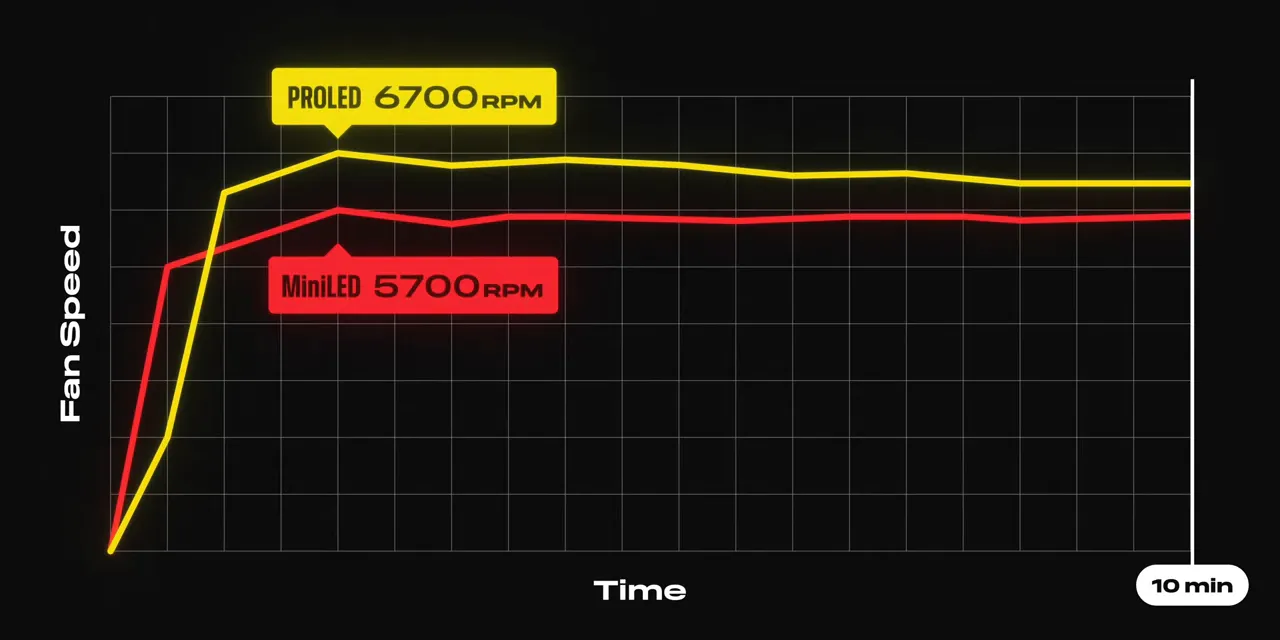
So there is a cooling compromise. It just doesn’t show up as slower results in these tests. Apple is compensating for the thinner design with higher fan speeds.
Airflow tests also suggest the redesigned system redirects hot air toward the back and sides, rather than sending it up past the display as before.
The practical result is essentially the same sustained performance in a thinner, lighter laptop. I’m happy with that. Just don’t confuse it with achieving those results under identical fan behavior.
14 Inches or 16 Inches? The Decision Gets Harder
I’m constantly torn between these two sizes.
The 14-inch is almost the perfect everyday laptop. Compact, light, easy to take everywhere. Then, seven or eight or nine times a year, I need to edit a video on a plane or at a hotel, and I immediately wish I had the 16-inch. The smaller display starts to feel cramped.
Then I live with a 16-inch for a while and remember the other side of the equation. It’s a lot of laptop to carry everywhere. It barely fits in some backpacks. Suddenly, the 14-inch looks pretty great again.
This lighter 16-inch is nudging me toward the bigger size. It’s still a large computer, but taking that much weight out makes it easier to bring along.
At the same time, the new 14-inch is even more appealing. It weighs less than the 15-inch MacBook Air. So neither choice has become worse. Both have become more tempting.
The Little Things Add Up
After the display and the chassis, there’s a collection of smaller changes. None is the main reason I’d buy this laptop, but they’re worth knowing about.
The Glowing Apple Logo Returns
The backlit Apple logo is back, and the amount of enthusiasm around it is pretty funny. People really missed this thing.
When it’s off, it looks much like the metallic logo on recent MacBooks. When the display turns on, the logo lights up. It seems to maintain a similar brightness through roughly the first half of the display’s brightness range, then gets brighter as the screen gets brighter.
By default, its behavior appears tied to display brightness. You can also turn it off with a Terminal command.
Speakers, Storage, Battery, and Webcam
- More bass: The speakers have different tuning, with a noticeable emphasis on bass. MacBook Pro speakers have been excellent for years, and these still sound good.
- Closed-lid audio tuning: There’s dedicated tuning for using the built-in speakers while the laptop is docked in clamshell mode.
- A 16TB SSD option: There’s now a $7,000 storage option if your needs, and budget, go that far.
- Familiar battery-life ratings: Rated battery life matches the mini-LED models, although OLED can provide a slight advantage in dark mode.
- More webcam stabilization: Helpful when tapping the display introduces movement during a video call.
Which brings us back to the feature getting all the attention.
The Touchscreen Is Responsive. I Still Barely Use It.
Apple spent a long time saying it wouldn’t put a touchscreen on a MacBook. Now it has, so naturally it’s a big deal.
But using this computer doesn’t feel like using some radically new kind of Mac. It isn’t a separate MacBook Ultra concept or a convertible laptop. It feels like an option at the top of the lineup: you get the ability to touch the screen, and the laptop hasn’t become worse because of it.
That’s about it.
The hinge doesn’t fold into an easel or let the screen lie flat for easier touch input. In fact, it doesn’t open quite as far as the previous model. There’s no Apple Pencil support. The hinge is slightly stiffer to reduce wobble, but this is still a conventional laptop.
What Changed in macOS for Touch?
Not that much. The main adaptations are fairly small:
- Two-step window controls: Tap the small red, yellow, and green controls once to enlarge them, then tap again to select one.
- Search at the top: Spotlight and Siri sit near the top of the display, accessible with a downward swipe.
- Window gestures: Grab a window and flick it to a side for a half-screen layout.
- Roomier menus: Menu items have more padding for finger input.
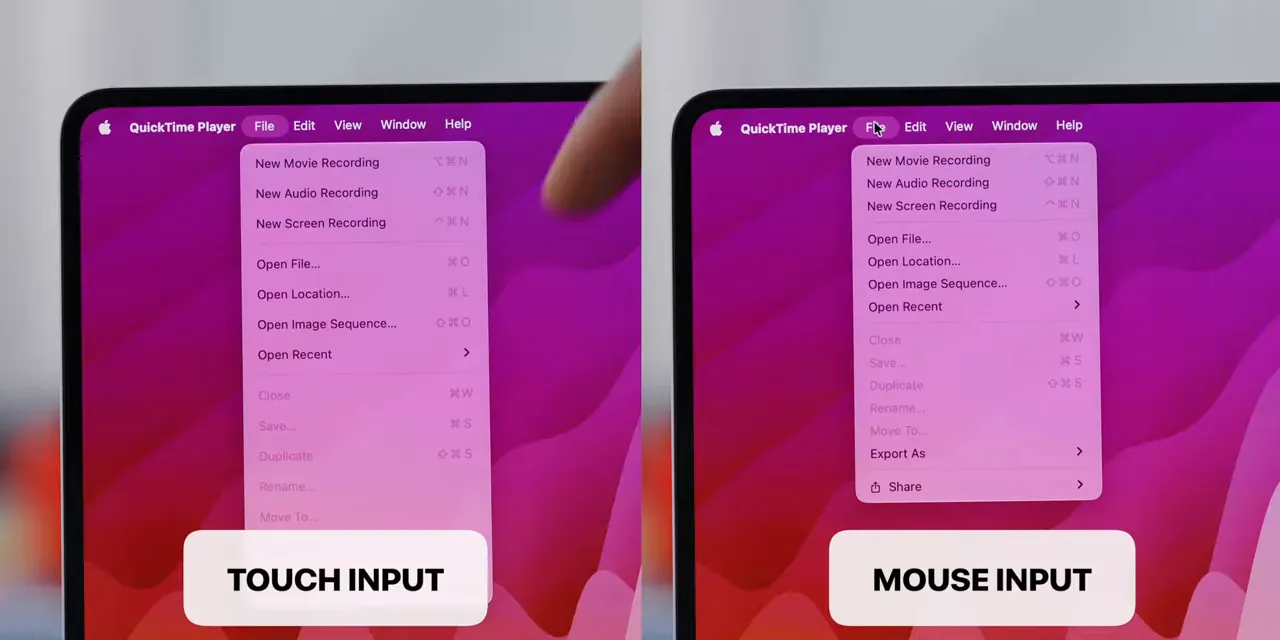
Some of that is nice. I just rarely feel compelled to reach out and use it. Swiping down to open search is a good example: I still need to return to the keyboard to type. Why move my hand away in the first place?
And then there are the fingerprints.
I’ve made an effort to give touch a fair chance, rather than immediately ignoring it. I’ll absolutely give it this: it feels like the most responsive touchscreen I’ve used. Between the OLED panel, the touch hardware, and the M5 Max powering this machine, the response feels ridiculously close to one-to-one with my finger.
Where Touch Actually Makes Sense
If you’re an iOS developer, testing an app with actual touch input could be useful. iPhone Mirroring also feels more intuitive when you can interact with the phone interface directly. Gestures work, and the relationship between your finger and the interface makes sense.
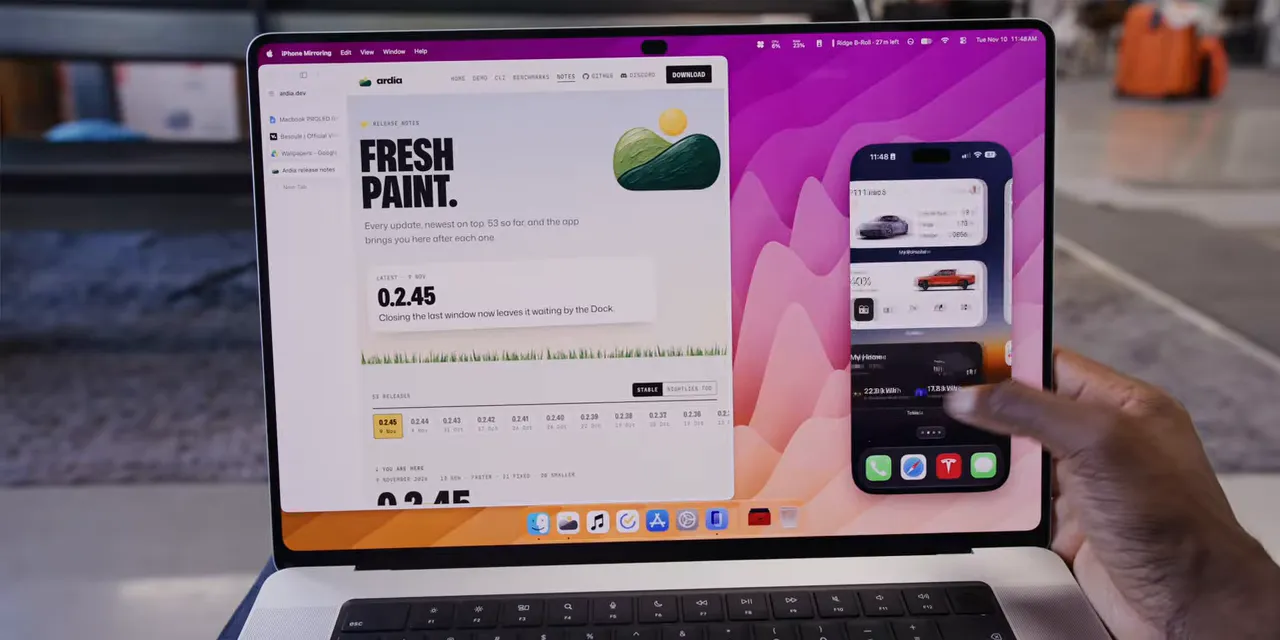
You still have the ergonomics of reaching toward an upright laptop display, some hinge movement, and fingerprints to deal with. For me, those costs usually outweigh the convenience.
If touch fits your workflow, great. If it doesn’t, you can ignore it. You can even turn it off.
Is the PROLED Upgrade Worth $400?
Apple silicon has a funny problem: the early machines were really, really good.
Someone with an M1, M2, or M3 laptop may still have a computer that handles everything they need. Another faster chip isn’t automatically a compelling reason to replace it.
Here’s the slightly unhinged analogy that keeps coming to mind: the Tesla Roadster. It was announced in 2017 as something extraordinary, but as development stretched on and other very fast electric cars arrived, speed alone became a less distinctive pitch. The proposed rocket-thruster idea gave people something else to talk about, whether or not they would ever use it.
The MacBook version of that is a glowing logo, a Dynamic Island, and a touchscreen. Suddenly, it’s not just another faster computer. There are new things to get excited about.
But the attention-grabbing feature and the genuinely valuable upgrade aren’t necessarily the same thing.
For my work, the display quality and the lower weight are the real reasons to consider switching. The touchscreen doesn’t need to transform my workflow for this to be a better laptop.
Will I make the jump? Maybe. Probably. I think the $400 premium is worth it, particularly for someone who depends on an excellent display and carries a MacBook Pro around regularly.
The simplest way to describe it is also the most accurate: this is a lighter MacBook Pro with a really nice screen that you can touch if you want to.
Apple provided the laptop for review.
Protecting the Finish: dbrand
I’ll probably skin the back of mine, as usual. My go-to has been dbrand’s Area 51 design, but for this laptop I’m leaning toward Sketch 2D, the same design I previously used on my Fold 7. There’s also a logo-cutout option if you want to keep the glowing Apple visible.
The underrated benefit of applying a skin when a laptop is new is protecting the finish from everyday scuffs as it goes in and out of backpacks and sleeves. Years later, when it’s time to sell, removing the skin can leave the surface underneath looking much fresher.
At around $30, that makes sense to me. dbrand already has roughly 40 designs available for the new PROLED MacBooks.


