Apple spent years explaining why a touchscreen laptop was a bad idea. Vertical touch surfaces tire out your arm. Reaching across a keyboard is awkward. Something can make an incredible demo without being particularly comfortable to use all day.
And now there's a touchscreen MacBook Pro.
It is also thinner, lighter, and more expensive, starting at $2,900. Those are the headlines. But after spending a few minutes with it, the interesting part isn't simply that Apple changed its mind. It's that the touchscreen might be one of the least compelling reasons to buy this laptop.
The OLED display and the weight savings? Those have my attention.
Quick Summary
- The tandem OLED display and lower weight are more compelling upgrades than touch itself.
- Touch gestures work responsively, but familiar ergonomic problems and screen wobble remain.
- There is no Face ID or Apple Pencil support on this MacBook Pro.
- Touch feels most useful for specific tasks, particularly interacting with an iPhone simulator in Xcode.
The OLED Display Is the Real Upgrade
Apple calls this the MacBook Pro with PROLED XDR display. Because, of course, it needs another display name.
There are still 14-inch and 16-inch versions, but the panel is now tandem OLED instead of Mini LED. And in person, it looks awesome.
That isn't a knock on the existing MacBook Pro displays. Those were already excellent. But OLED brings its familiar strengths: properly black blacks, much less blooming, and a quoted 10 million to one contrast ratio. Bright details against dark backgrounds have the kind of separation that makes contrast-heavy images and HDR content look immediately impressive.
This is still an initial impression, not the result of extensive display testing. But the first impression is very, very good.
There are a few smaller changes around the panel, too:
- Thinner bezels: The displays are slightly larger within the same nominal size classes.
- Rounded bottom corners: Apple has curved the lower corners of the screen as well.
- Two finishes: There's a regular glossy option and a matte nano-texture option.
- A Dynamic Island: The notch is gone, replaced by a smaller cutout with software interactions around it.
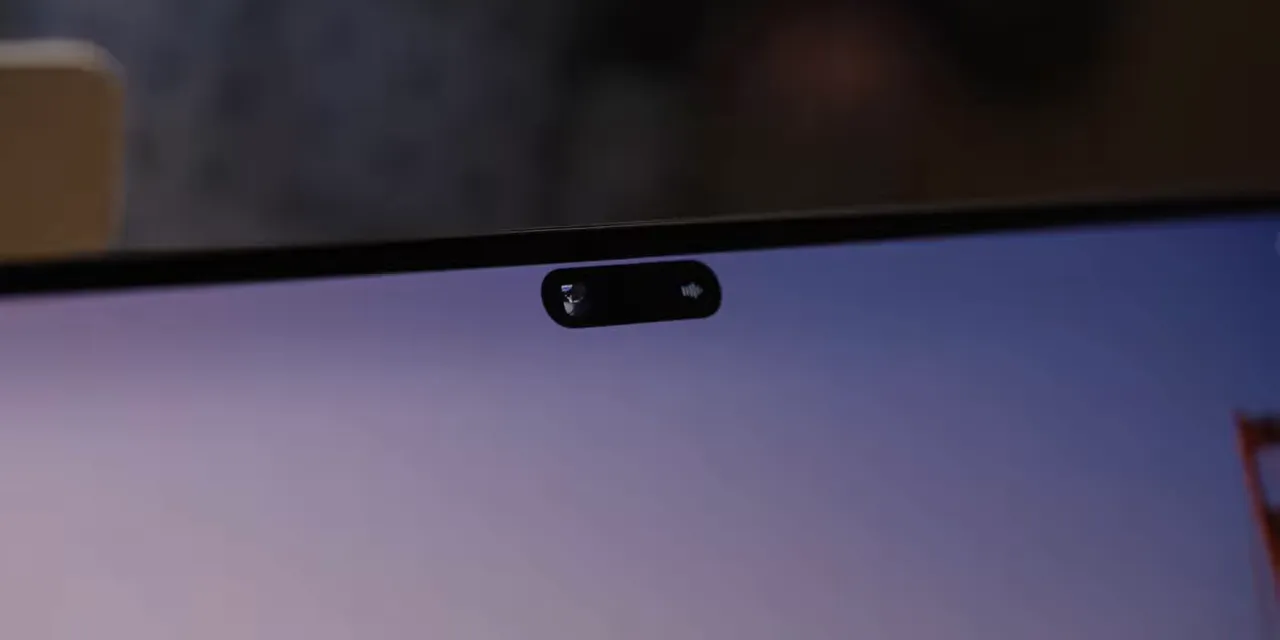
Before you get excited about that last one: there is still no Face ID. The hardware up there is a webcam and an ambient light sensor. Touch ID remains in the corner of the keyboard.
Face ID would have been pretty high on my personal next-generation MacBook Pro wish list. A touchscreen wouldn't have been anywhere near the top.
Less Weight, Mostly the Same MacBook
The OLED panel and a redesigned cooling system help bring the weight down. The 14-inch model is now three pounds instead of about three and a half. The 16-inch loses almost a whole pound.
That matters. If you pick up your laptop, put it in a bag, and carry it around almost every day, you notice a change like that far more often than you might use a new input method.
I kept picking this up next to the 16-inch MacBook Pro I carry around and edit on. And every time, I had the same thought: okay, that might be really nice.
The speakers have also been updated, with deeper bass and better sound when the lid is closed. But most of the surrounding package is familiar:
- The same overall design, ports, and keyboard.
- The same M5 Pro and M5 Max chip options.
- The same stated battery life.
- The same Touch ID fingerprint reader.
So this isn't a completely different kind of Mac. It's a familiar MacBook Pro with a substantially different display, less weight, and one more way to interact with it.
Yes, the Glowing Apple Logo Is Back
Of course, if you're spending roughly $3,000 on a new laptop, how is anyone supposed to know you got the new one?
Apple has an answer: the glowing logo is back.
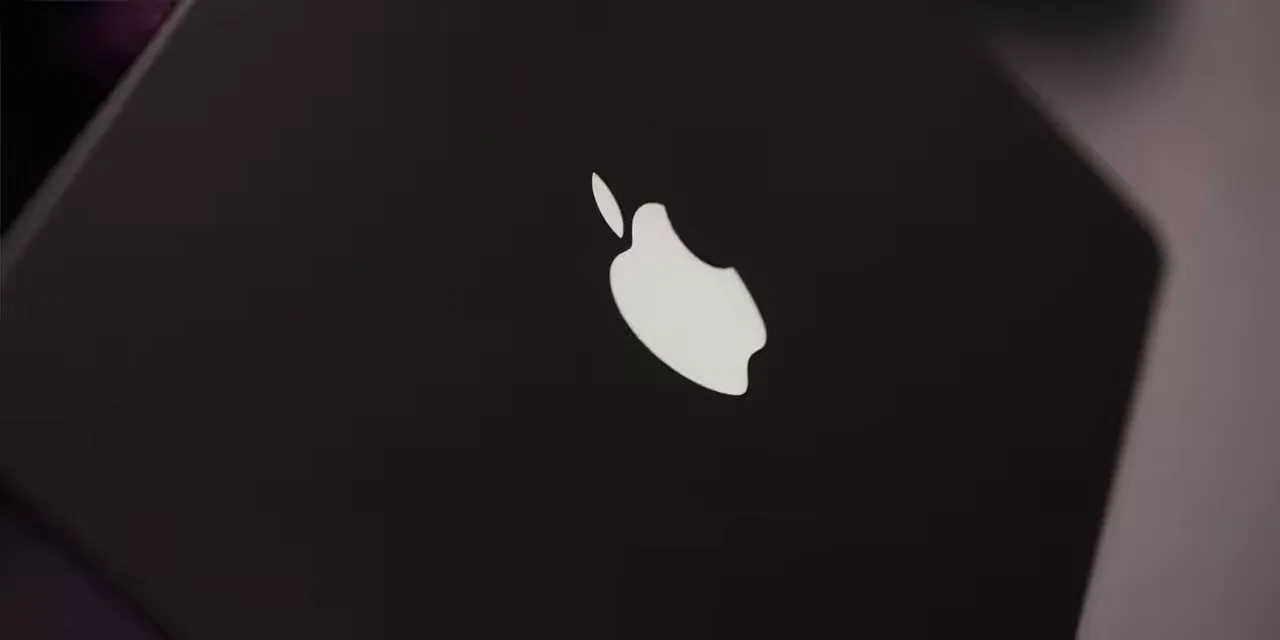
It still has a metallic, reflective appearance when it's off. When it's illuminated, its brightness follows the display brightness. Dim screen in a dark room, dim logo. Bright screen in a bright space, bright logo.
The funny part is that this is more of an engineering project than it used to be. On the older glowing-logo MacBooks, the display backlight could shine through the Apple-shaped opening in the lid.
OLED doesn't have that backlight. So Apple has specifically added lighting to make the logo glow again. Some engineering, and a little power, devoted to bringing back an iconic look. Just know that.
What Touch Actually Does on a Mac
I've tested plenty of touchscreen laptops over the years. Almost every time, I eventually forget the touchscreen is there.
I don't particularly want fingerprints on my display. I don't want the lid wobbling every time I press something. And I don't want to hold my arm out in front of me when there's already a keyboard and trackpad right under my hands.
Apple's usual move is to arrive late to a technology and make the implementation feel considered enough that the timing makes sense. So the question here is pretty straightforward: has Apple solved something that other touchscreen laptops haven't?
From my brief hands-on time, I don't think it has.
To be clear, the touch response itself is excellent. It is fast, responsive, and works where you'd expect:
- You can scroll directly through content.
- Pinch-to-zoom works in supported places.
- The display responds to all ten fingers at once.
- Multi-finger gestures let you move between Spaces directly on the screen.
That last one is kind of weird. You can now reach up and sweep four fingers across a MacBook display to move between desktops. It works. I'm just not sure why I'd choose it over the trackpad.
Spotlight and Siri Move Into the Dynamic Island
Spotlight and Siri now animate out of the Dynamic Island. You can swipe down from the top of the display to bring up that interaction.
Command-Space still works, thankfully. The alternative is to lift your hand, swipe down on the screen, and then put your hand right back on the keyboard to type. Having the option is fine. It doesn't automatically make that option better.
Window Management Gets Some Touch Adaptations
You can grab a window and fling it toward one side of the screen to make it occupy half the display, then do the same with another window on the other side. It has a little of that direct-manipulation feeling you get on an iPad, assuming you successfully grab the right part of the window.
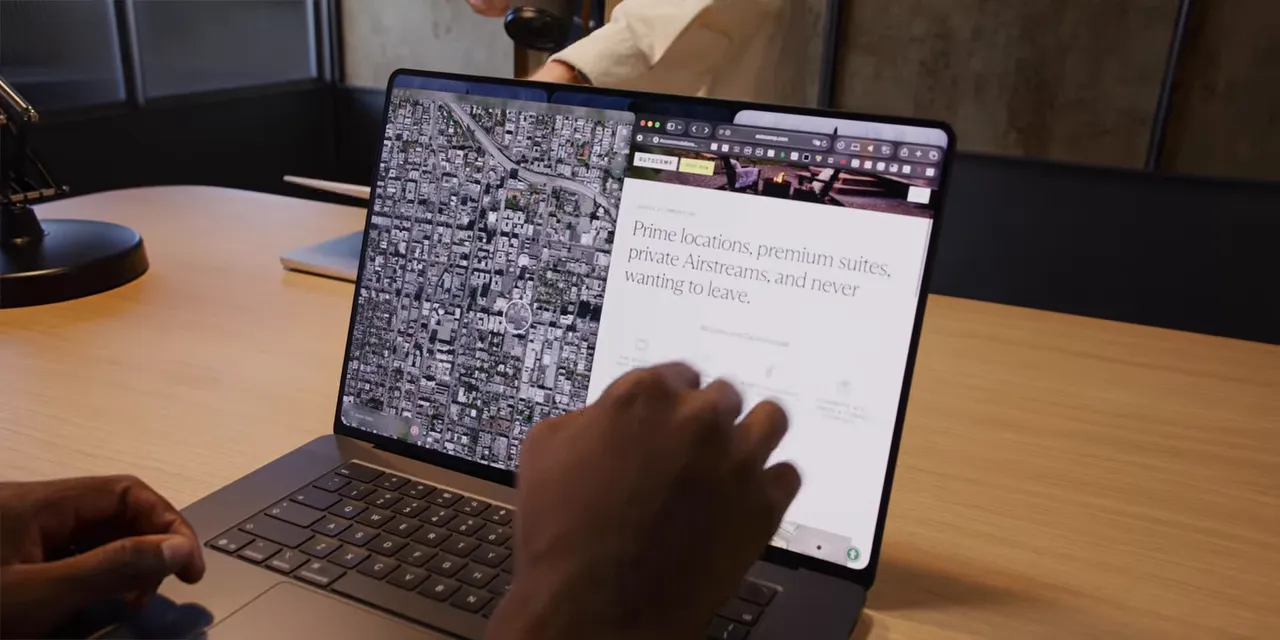
Apple has also accounted for some of the Mac's smaller controls. If you touch the tiny red, yellow, and green window buttons, the controls first enlarge so you can select the one you actually want.
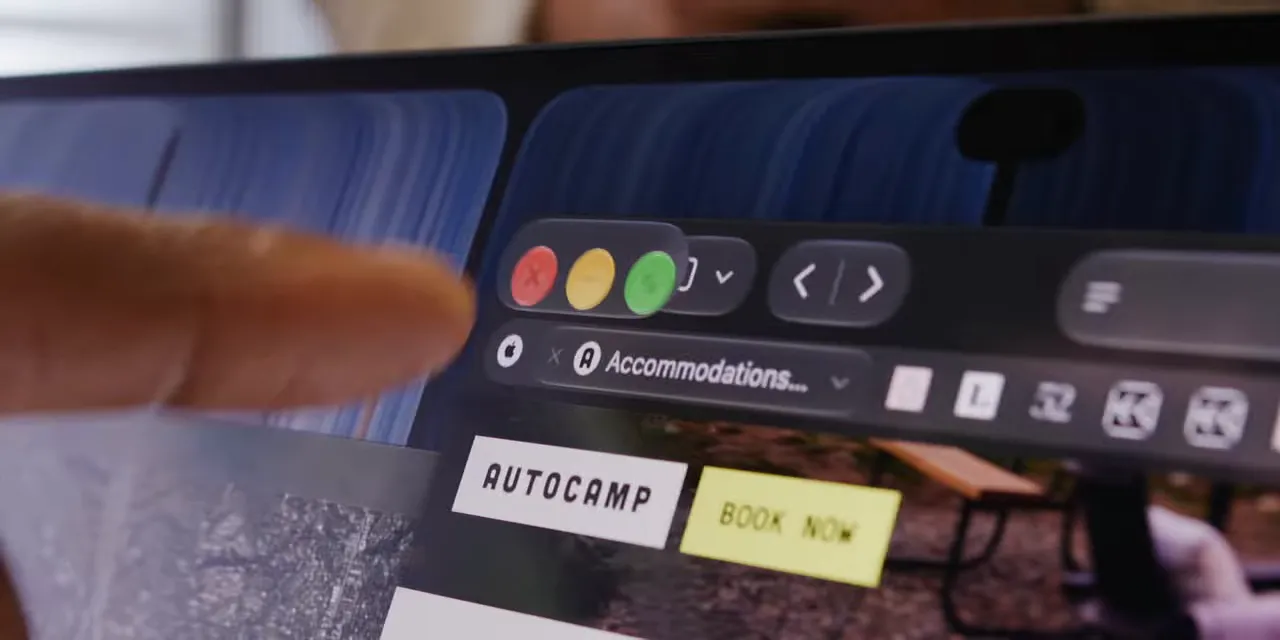
That's thoughtful. It makes a small target easier to hit. But it still feels like an accommodation for using a desktop interface with a finger, rather than a fundamental improvement to the interface.
The Ergonomic Problems Haven't Disappeared
I wondered whether the hinge might be the secret.
After the variable hinge resistance in the iPhone Duo, maybe Apple would do something especially clever here. A hinge that's easy to open but becomes dramatically more resistant when you're pressing on the screen could at least address some of the wobble.
There is an adjustment. The hinge feels a little stiffer in the middle of its travel. But physics is still physics: it also has to open and close comfortably, so there are limits to how stiff it can be.
The display still moves a little when you poke or press it. Reaching up still means reaching up. And fingerprints are still fingerprints.
There is also no Apple Pencil support. So this isn't suddenly a MacBook that doubles as a Pencil-based drawing surface.
Apple has made touching a Mac possible and added some sensible software adaptations. It hasn't made the old objections to vertical touchscreens stop being true.
Useful Workflows, or Just Great Demos?
The professional demonstrations covered a bunch of different uses. There was a virtual keyboard in Logic that you could play directly on the display. There were 3D models to rotate and manipulate. There were Gaussian splat scenes, assembled from iPhone footage, that you could pan around with your fingers.
These interactions worked. But they mostly looked like occasional touches inside workflows that were otherwise still built around a keyboard and trackpad.
And that makes sense. Most Macs don't have touchscreens. Applications built for the Mac still need to work well on those machines, so their primary interfaces will continue to be designed for conventional desktop input.
Adding touch to one MacBook option doesn't instantly change decades of desktop application design.
The One Use Case That Clicked: iOS Development
The most convincing example for me was app development.
If you're working in Xcode and have an iPhone simulator open, being able to reach up and interact directly with the simulated phone feels useful. You're testing an interface intended for fingers, and now you can use your fingers instead of translating every interaction through a pointer.
For context on that workflow, Apple's Simulator documentation explains how running an app in a simulated device fits into development.
That doesn't make this a must-have for every developer. But it was the example where I could most easily see touch earning its place rather than simply making an impressive demonstration.
The Instrument Wall Was Very Cool
There was also a demo connecting the laptop to a glowing wall of instruments that reacted to touch in real time. John Ternus tried it, and I got to try it too.
It worked amazingly well. I hadn't experienced anything quite like it.
But that brings me right back to Steve Jobs's original criticism: a vertical touchscreen can make a spectacular demo without becoming the way you want to use a computer all day. Both things can be true.
An Option, Not a Reinvention
The important distinction is that Apple hasn't rebuilt the entire MacBook Pro around touch.
This isn't a new MacBook Ultra. The existing MacBook Pro still exists. This is another MacBook Pro option that has an OLED display and happens to support touch, without an apparent weight or battery-life penalty for that touch capability.
That feels consistent with the product philosophy emerging around Ternus: offer a different version without insisting it's the version for everybody. The iPhone Duo fits that idea, too. These products were obviously in development long before his move into the CEO role, but philosophically, they sit together.
Someone shopping for a MacBook Pro is inevitably going to ask whether this is the best one, and whether they should spend more for it. My answer is that the newest option isn't automatically the right option.
If you already have a current-generation MacBook Pro, it should remain a good machine for years. You don't suddenly need to replace it because the new one accepts fingerprints on the screen.
For a fuller evaluation, I'd want more time with the display, the lighter design, and the actual day-to-day workflows. A comparison with the new RTX Spark laptops would also be interesting, especially the matte-black touchscreen Surface Ultra that looks like a direct competitor.
For now, I'm fine with a touchscreen MacBook Pro existing. I'm just not personally interested in buying it for the touchscreen.
The OLED panel and the nearly one-pound reduction on the 16-inch? That's the part I keep coming back to.


